One of our partners has a requirement to integrate Lotus Connections 2.5 into WebSphere Portal, using the Web Application Integrator portlets.
As part of this, they want to force any links opened from within the various widgets to open in the same, rather than a new page/window/tab. In this way, they can use WAI across all of the Connections features and preserve the Portal navigation.
With a lot of help from Adrian Spender, who leads the IBM Dublin development team responsible for the Homepage and aggregation services, I was able to come up with a solution.
In my own environment, I chose to focus on the Communities widget that appears within the My Page subpage of Homepage (!).
The links that this iWidget generate are controlled by an Extensible Stylesheet Language Transformations (XSLT) file which, for Homepage, is located here: -
/opt/IBM/WebSphere/AppServer/profiles/AppSrv01/installedApps/lc25Node01Cell/Homepage.ear/dboard.war/xslt
The XSL file ( communities.xsl ) contains the following two snippets: -
...
<xsl:template name="entries" match="/atom:feed">
<xsl:for-each select="atom:entry">
<div class="entry">
<div class="icons">
<a target="_blank">
<xsl:attribute name="href">
...
and: -
...
<h4>
<a target="_blank">
<xsl:attribute name="href">
<xsl:value-of select="atom:link[@rel='alternate']/@href" />
</xsl:attribute>
...
Having backed up the file, it's then a simple matter to replace: -
<a target="_blank">
with: -
<a>
and save the file.
Once this is done, I restarted WAS to clear down any cached copies of the XSL ( in my case, I found it necessary to restart the entire cluster, and clear down /opt/IBM/WebSphere/AppServer/profiles/AppSrv01/temp/ and /opt/IBM/WebSphere/AppServer/profiles/AppSrv01/wstemp/ as well as clearing my browser cache ).
Once Connections was restarted, I logged back into Homepage, and confirmed that, when I click on a Community name under Communities -> My Communities, that the Community itself opened up in the SAME rather than a NEW page.
Again, credit to Adrian for his advice :-)
Tuesday, 19 October 2010

WebSphere Portal v7 and WebDAV
Following a question from a friend, I've had a very quick play with the enhanced WebDAV support in WebSphere Portal v7.
It looks like one can now use a WebDAV client ( which provides file-system-like access via HTTP ) to interact with the WP7 page navigation, themes and hierarchy.
This provides a quick mechanism to create, edit, delete themes and pages etc. without needing to use the normal WP7 Administration portlets ( Manage Pages, Themes and Skins etc. ) or XMLAccess scripts.
Now, as regular followers of this blog will know, I use Ubuntu as one of my two main desktop operating systems ( the other being OSX ), and Ubuntu kindly comes with built-in support for WebDAV, via the Places -> Connect to Server menu structure. This is effectively part of the Nautilus file manager application.
Using this approach, I was able to connect to my local instance of WebSphere Portal v7 as follows: -
***DANGER, WILL ROBINSON***
Remember, with great power comes great responsibility (TM), and the ability to DELETE files and folders could quickly break your Portal implementation far easier than one might using the more conventional approaches.
***DANGER, WILL ROBINSON***
*UPDATE 19/10/2010*
The WebDAV path: -
http://dmhw500.uk.ibm.com:10039/wps/mycontenthandler/dav/fs-type1/themelist
is known as a File System Entry Point, whereas there are other entry points for themes: -
http://dmhw500.uk.ibm.com:10039/wps/mycontenthandler/dav/themelist/all
and skins: -
http://dmhw500.uk.ibm.com:10039/wps/mycontenthandler/dav/skinlist/all
Note the syntax of these two URLs - other documents describe these URLs as: -
http://dmhw500.uk.ibm.com:10039/wps/mycontenthandler/dav/themelist
http://dmhw500.uk.ibm.com:10039/wps/mycontenthandler/dav/skinlist
e.g. without the /all suffix.
It transpires that some WebDAV clients don't handle this particularly well, hence the need for the /all suffix.
For me, using Nautilus 2.30.1 in Ubuntu 10.04, I needed to use the /all suffix.
Via these two Entry Points, I can, for example, create a new folder at the same level as the two existing themes - Page Builder and Portal - and that newly created folder will then appear dynamically / automagically as a new theme.
*UPDATE 19/10/2010*
It looks like one can now use a WebDAV client ( which provides file-system-like access via HTTP ) to interact with the WP7 page navigation, themes and hierarchy.
This provides a quick mechanism to create, edit, delete themes and pages etc. without needing to use the normal WP7 Administration portlets ( Manage Pages, Themes and Skins etc. ) or XMLAccess scripts.
Now, as regular followers of this blog will know, I use Ubuntu as one of my two main desktop operating systems ( the other being OSX ), and Ubuntu kindly comes with built-in support for WebDAV, via the Places -> Connect to Server menu structure. This is effectively part of the Nautilus file manager application.
Using this approach, I was able to connect to my local instance of WebSphere Portal v7 as follows: -
- Select Places -> Connect to Server
- Set Service type to WebDAV (HTTP)
- Set Server to the hostname of the Portal server ( dmhw500.uk.ibm.com or, in my case, localhost )
- Set Port to 10039 ( this is the new default HTTP port on which WebSphere Portal listens; in v6.0 this was 10038 and in v6.1 it was 10040, so it's time for another change ! )
- Set Folder to the appropriate URL e.g. /wps/mycontenthandler/dav/fs-type1/themelist ( for the available themes ) or /wps/mycontenthandler/dav/contentmodel/wps.content.root ( for the overall page hierarchy )
- Enter the User Name e.g. wpsadmin
- Enter a Bookmark name e.g. Themes etc. - this is useful when you want to come back to the folder at some later date
- Click Connect
- You will be prompted to enter the password for the user ( wpsadmin etc. ) and also to choose whether you want to cache the password in Ubuntu's rather useful keyring manager ( aka Seahorse )
***DANGER, WILL ROBINSON***
Remember, with great power comes great responsibility (TM), and the ability to DELETE files and folders could quickly break your Portal implementation far easier than one might using the more conventional approaches.
***DANGER, WILL ROBINSON***
*UPDATE 19/10/2010*
The WebDAV path: -
http://dmhw500.uk.ibm.com:10039/wps/mycontenthandler/dav/fs-type1/themelist
is known as a File System Entry Point, whereas there are other entry points for themes: -
http://dmhw500.uk.ibm.com:10039/wps/mycontenthandler/dav/themelist/all
and skins: -
http://dmhw500.uk.ibm.com:10039/wps/mycontenthandler/dav/skinlist/all
Note the syntax of these two URLs - other documents describe these URLs as: -
http://dmhw500.uk.ibm.com:10039/wps/mycontenthandler/dav/themelist
http://dmhw500.uk.ibm.com:10039/wps/mycontenthandler/dav/skinlist
e.g. without the /all suffix.
It transpires that some WebDAV clients don't handle this particularly well, hence the need for the /all suffix.
For me, using Nautilus 2.30.1 in Ubuntu 10.04, I needed to use the /all suffix.
Via these two Entry Points, I can, for example, create a new folder at the same level as the two existing themes - Page Builder and Portal - and that newly created folder will then appear dynamically / automagically as a new theme.
*UPDATE 19/10/2010*
Monday, 18 October 2010
Troubleshooting Lotus Sametime 8.5 using WebSphere Application Server configuration files and logs
Rainer Vetter's blog, RV Has Parked, drew my attention to this article on the Sametime Wiki: -
The document below describes several WebSphere Application Server configuration files and logs that can be helpful for determining the current configuration of Lotus Sametime 8.5 and troubleshooting issues that occur in the Sametime environment. Document: Troubleshooting Lotus Sametime 8.5 using WebSphere Application Server configuration files and logs
The topics covered in the document are: -
The document below describes several WebSphere Application Server configuration files and logs that can be helpful for determining the current configuration of Lotus Sametime 8.5 and troubleshooting issues that occur in the Sametime environment. Document: Troubleshooting Lotus Sametime 8.5 using WebSphere Application Server configuration files and logs
The topics covered in the document are: -
- WebSphere Application Server configuration files in the context of Sametime
- How to manually synchronize Sametime configuration changes
- How to automate synchronization of nodes
- WebSphere Application Server log files in the context of Sametime
- How to enable Trace for WebSphere Application Server based Sametime servers
- How to bind ports
Hmmm, security problems with WebSphere Application Server 6.1.0.29
I hit an interesting problem with my Lotus Connections 2.5 server today - the symptoms including my apparent inability to log in using the WAS administrator ID via the Integrated Solutions Console: -
https://lc25.uk.ibm.com:9043/ibm/console/logon.jsp
as well as these errors in the SystemOut log: -
[10/18/10 18:34:24:240 BST] 00000039 LTPAServerObj E SECJ0369E: Authentication failed when using LTPA. The exception is <null>.
[10/18/10 18:36:32:799 BST] 0000003c FormLoginExte E SECJ0118E: Authentication error during authentication for user lcadmin
and this error: -
ADMU0002E: Exception attempting to process server dmgr: javax.management.JMRuntimeException: ADMN0022E: Access is denied for the getState operation on Server MBean because of insufficient or empty credentials.
when I tried to administer the server from the command line using the command: -
/opt/IBM/WebSphere/AppServer/profiles/Dmgr01/bin/serverStatus.sh -all -user lcadmin -password wpsadm1n
My first thought was that LDAP was down, so I checked the VM in which LDAP ( IBM Tivoli Directory Server 6.2 ) and DB2 are running, but all appeared to be well. I could PING the LDAP server from the Connections box, and also TELNET to it on port 389, indicating that LDAP was ready and willing to receive.
I even stopped and started LDAP, but to no avail.
However, when I looked further into the logs, by tailing the LDAP error log: -
/home/dsrdbm01/idsslapd-dsrdbm01/logs/ibmslapd.log
I found: -
10/18/2010 09:09:40 PM GLPSRV200I Initializing primary database and its connections.
10/18/2010 09:09:41 PM GLPRDB001E Error code -1 from function:" SQLConnect " ldapdb2b .
10/18/2010 09:09:41 PM GLPSRV064E Failed to initialize be_config.
10/18/2010 09:09:41 PM GLPSRV040E Server starting in configuration only mode due to errors.
10/18/2010 09:09:41 PM GLPCOM024I The extended Operation plugin is successfully loaded from libloga.so.
10/18/2010 09:09:41 PM GLPCOM024I The extended Operation plugin is successfully loaded from libidsfget.so.
10/18/2010 09:09:41 PM GLPSRV180I Pass-through authentication is disabled.
10/18/2010 09:09:41 PM GLPCOM003I Non-SSL port initialized to 389.
10/18/2010 09:09:41 PM GLPSRV009I 6.2.0.0 server started.
10/18/2010 09:09:41 PM GLPSRV036E Errors were encountered while starting the server; started in configuration only mode.
and, when I looked again at the logs generated by my custom start LDAP script -
su db2inst1 -c '/home/db2inst1/sqllib/adm/db2start'
export DB2INSTANCE=dsrdbm01
/opt/ibm/ldap/V6.2/sbin/ibmslapd start
I saw the same errors: -
GLPSRV200I Initializing primary database and its connections.
GLPRDB001E Error code -1 from function:" SQLConnect " ldapdb2b .
GLPSRV064E Failed to initialize be_config.
GLPSRV040E Server starting in configuration only mode due to errors.
Thinking that this was looking like a DB2 "problem", I decided to attempt a connection to the database to find out for sure: -
su - dsrdbm01
db2 connect to LDAPDB2B
which returned: -
SQL8001N An attempt to connect to the database failed due to a product licence problem. SQLSTATE=42968
which, according to: -
db2 ? SQL8001N
means: -
SQL8001N An attempt to connect to the database failed due to a product licence problem.
Explanation:
The connection attempt failed due to one of the following DB2 licensing issues:
o A license key is not present.
o A license key has not been correctly installed.
o A license key has expired.
o This DB2 product edition does not support a license key.
User Response:
Instruct your database administrator to verify that a valid license key for the DB2 product is installed correctly, and has not expired.
o Use the db2licm -l command or DB2 License Center to view licenses.
o Use the db2licm -a command or DB2 License Center to register a license.
o You can obtain a license key for the product by contacting your IBM representative or authorized dealer.
sqlcode : -8001
sqlstate : 42968
Following the recommendation, I checked the DB2 license key: -
db2licm -l
which returned: -
Product name: "DB2 Enterprise Server Edition"
Expiry date: "Expired"
Product identifier: "db2ese"
Version information: "9.1"
Thankfully, I had the DB2 Enterprise Server Edition 9.1 license key available, in a previously downloaded package on my USB drive.
I installed it using the command: -
db2licm -a ~/db2ese_t.lic
and re-ran the command: -
db2licm -l
which now returns: -
Product name: "DB2 Enterprise Server Edition"
License type: "Trial"
Expiry date: "01/15/2011"
Product identifier: "db2ese"
Version information: "9.1"
Annotation: "-5;(_t)"
and also re-tested the connection: -
db2 connect to LDAPDB2B
which now returns: -
Database Connection Information
Database server = DB2/LINUX 9.1.9
SQL authorization ID = DSRDBM01
Local database alias = LDAPDB2B
Finally, I stopped LDAP: -
export DB2INSTANCE=dsrdbm01
/opt/ibm/ldap/V6.2/sbin/ibmslapd -k
and started it again: -
su db2inst1 -c '/home/db2inst1/sqllib/adm/db2start'
export DB2INSTANCE=dsrdbm01
/opt/ibm/ldap/V6.2/sbin/ibmslapd start
Once I restarted my WAS instance ( sadly I had to force it to quit using the "nuclear" kill switch of killall java ), I was able to authenticate into WAS using the ISC, run commands such as serverStatus.sh etc.
The moral of the story - if you get an authentication problem with WAS, check that your DB2 license hasn't expired :-)
https://lc25.uk.ibm.com:9043/ibm/console/logon.jsp
as well as these errors in the SystemOut log: -
[10/18/10 18:34:24:240 BST] 00000039 LTPAServerObj E SECJ0369E: Authentication failed when using LTPA. The exception is <null>.
[10/18/10 18:36:32:799 BST] 0000003c FormLoginExte E SECJ0118E: Authentication error during authentication for user lcadmin
and this error: -
ADMU0002E: Exception attempting to process server dmgr: javax.management.JMRuntimeException: ADMN0022E: Access is denied for the getState operation on Server MBean because of insufficient or empty credentials.
when I tried to administer the server from the command line using the command: -
/opt/IBM/WebSphere/AppServer/profiles/Dmgr01/bin/serverStatus.sh -all -user lcadmin -password wpsadm1n
My first thought was that LDAP was down, so I checked the VM in which LDAP ( IBM Tivoli Directory Server 6.2 ) and DB2 are running, but all appeared to be well. I could PING the LDAP server from the Connections box, and also TELNET to it on port 389, indicating that LDAP was ready and willing to receive.
I even stopped and started LDAP, but to no avail.
However, when I looked further into the logs, by tailing the LDAP error log: -
/home/dsrdbm01/idsslapd-dsrdbm01/logs/ibmslapd.log
I found: -
10/18/2010 09:09:40 PM GLPSRV200I Initializing primary database and its connections.
10/18/2010 09:09:41 PM GLPRDB001E Error code -1 from function:" SQLConnect " ldapdb2b .
10/18/2010 09:09:41 PM GLPSRV064E Failed to initialize be_config.
10/18/2010 09:09:41 PM GLPSRV040E Server starting in configuration only mode due to errors.
10/18/2010 09:09:41 PM GLPCOM024I The extended Operation plugin is successfully loaded from libloga.so.
10/18/2010 09:09:41 PM GLPCOM024I The extended Operation plugin is successfully loaded from libidsfget.so.
10/18/2010 09:09:41 PM GLPSRV180I Pass-through authentication is disabled.
10/18/2010 09:09:41 PM GLPCOM003I Non-SSL port initialized to 389.
10/18/2010 09:09:41 PM GLPSRV009I 6.2.0.0 server started.
10/18/2010 09:09:41 PM GLPSRV036E Errors were encountered while starting the server; started in configuration only mode.
and, when I looked again at the logs generated by my custom start LDAP script -
su db2inst1 -c '/home/db2inst1/sqllib/adm/db2start'
export DB2INSTANCE=dsrdbm01
/opt/ibm/ldap/V6.2/sbin/ibmslapd start
I saw the same errors: -
GLPSRV200I Initializing primary database and its connections.
GLPRDB001E Error code -1 from function:" SQLConnect " ldapdb2b .
GLPSRV064E Failed to initialize be_config.
GLPSRV040E Server starting in configuration only mode due to errors.
Thinking that this was looking like a DB2 "problem", I decided to attempt a connection to the database to find out for sure: -
su - dsrdbm01
db2 connect to LDAPDB2B
which returned: -
SQL8001N An attempt to connect to the database failed due to a product licence problem. SQLSTATE=42968
which, according to: -
db2 ? SQL8001N
means: -
SQL8001N An attempt to connect to the database failed due to a product licence problem.
Explanation:
The connection attempt failed due to one of the following DB2 licensing issues:
o A license key is not present.
o A license key has not been correctly installed.
o A license key has expired.
o This DB2 product edition does not support a license key.
User Response:
Instruct your database administrator to verify that a valid license key for the DB2 product is installed correctly, and has not expired.
o Use the db2licm -l command or DB2 License Center to view licenses.
o Use the db2licm -a command or DB2 License Center to register a license.
o You can obtain a license key for the product by contacting your IBM representative or authorized dealer.
sqlcode : -8001
sqlstate : 42968
Following the recommendation, I checked the DB2 license key: -
db2licm -l
which returned: -
Product name: "DB2 Enterprise Server Edition"
Expiry date: "Expired"
Product identifier: "db2ese"
Version information: "9.1"
Thankfully, I had the DB2 Enterprise Server Edition 9.1 license key available, in a previously downloaded package on my USB drive.
I installed it using the command: -
db2licm -a ~/db2ese_t.lic
and re-ran the command: -
db2licm -l
which now returns: -
Product name: "DB2 Enterprise Server Edition"
License type: "Trial"
Expiry date: "01/15/2011"
Product identifier: "db2ese"
Version information: "9.1"
Annotation: "-5;(_t)"
and also re-tested the connection: -
db2 connect to LDAPDB2B
which now returns: -
Database Connection Information
Database server = DB2/LINUX 9.1.9
SQL authorization ID = DSRDBM01
Local database alias = LDAPDB2B
Finally, I stopped LDAP: -
export DB2INSTANCE=dsrdbm01
/opt/ibm/ldap/V6.2/sbin/ibmslapd -k
and started it again: -
su db2inst1 -c '/home/db2inst1/sqllib/adm/db2start'
export DB2INSTANCE=dsrdbm01
/opt/ibm/ldap/V6.2/sbin/ibmslapd start
Once I restarted my WAS instance ( sadly I had to force it to quit using the "nuclear" kill switch of killall java ), I was able to authenticate into WAS using the ISC, run commands such as serverStatus.sh etc.
The moral of the story - if you get an authentication problem with WAS, check that your DB2 license hasn't expired :-)
Wednesday, 13 October 2010
Using the updated IBM Content Templates Catalog application and the newly released IBM WebSphere Portal Solution Installer ...
Following on from earlier blog posts here and here and here, I have spent some time today looking at the updated IBM Content Templates Catalog asset in the Catalog as the asset has been updated to support WebSphere Portal v7.
One other major change is that the CTC asset is now installable using the new Portal Solution Installer solution: -
The IBM WebSphere Portal Solution Installer is a utility for installing, uninstalling and updating solutions or applications to an instance of WebSphere Portal Server. The basis of the Solution Installer is a standard format for application distribution, the Portal Application Archive (PAA) format. This will make it more straightforward to install Portal Applications without the need for custom installation scripts.
The Solution Installer should be used to install applications which are in the PAA format and can be used by application developers to prepare their applications to be distributed in the PAA format.
The asset can be downloaded from the Greenhouse here.
Having downloaded the Solution Installer package ( as SolutionInstaller.zip ), you can expand it: -
cd /tmp
unzip /home/hayd/Downloads/SolutionInstaller.zip
and then customise it to support WebSphere Portal 7 - it defaults to version 6: -
cd /tmp/SolutionInstaller/components/SolutionInstaller/
cp SolutionInstaller.properties SolutionInstaller.properties.original
fromdos SolutionInstaller.properties - I needed to perform this step as the file had been formatted with CR/LF characters from Windows Notepad or similar
vi SolutionInstaller.properties
by changing: -
portal_version=6
to: -
portal_version=7
Once done, copy it to the Portal Server directory: -
cp -Rf /tmp/SolutionInstaller/ /opt/IBM/WebSphere/PortalServer/
and install it using ConfigEngine: -
cd /opt/IBM/WebSphere/wp_profile/ConfigEngine/
./ConfigEngine.sh -install -assemblyRoot /opt/IBM/WebSphere/PortalServer/SolutionInstaller -installPath /opt/IBM/WebSphere/PortalServer -user wpsadmin -pwd passw0rd -hostname dmhw500.uk.ibm.com -port 10025 -offeringName PortalServer -assemblyName SolutionInstaller -expandBinaries false
On completion, you should validate the installation: -
cat /opt/IBM/WebSphere/wp_profile/ConfigEngine/registry.xml | grep SolutionInstaller
and check for the following lines: -
<snip>
...
<assembly xmi:id="Assembly_1286957656418" assemblyName="SolutionInstaller" installLocation="/opt/IBM/WebSphere/PortalServer/SolutionInstaller" lastModified="10/13/2010" version="6.1.0.0">
<component xmi:id="Component_1286957656506" compName="components/SolutionInstaller" installLocation="/opt/IBM/WebSphere/PortalServer/SolutionInstaller/components/SolutionInstaller" version="6.1.0.0"/>
...
</snip>
Add passwords ( WasPassword and PortalAdminPwd ) to the ConfigEngine properties file: -
vi /opt/IBM/WebSphere/wp_profile/ConfigEngine/properties/wkplc.properties
Setup the Solution Installer
./ConfigEngine.sh si-setup
and look for the "BUILD SUCCESSFUL" message.
Download the CTC from here and unpack it: -
cd /tmp
unzip /home/hayd/Desktop/1WP1002G6.zip
unzip 1WP1002G6_7.zip
cd 1WP1002G6
and then install it using the newly installed Solution Installer: -
ConfigEngine.bat install-paa -DPAALocation=/tmp/1WP1002G6/wp.ctc.paa
and check for the "BUILD SUCCESSFUL" message.
Once this has completed, run the following command to complete the registration of the CTC asset: -
./ConfigEngine.sh deploy-paa -DappName=wp.ctc
Again, this should completed with a "BUILD SUCCESSFUL" message - for me, this took 23 minutes on a Thinkpad W500 dual core with 8 GB RAM. WARNING, YOUR MILEAGE MAY VARY !!
Post installation, I accessed my portal server via the normal URL, and see the purty loveliness that is the CTC content.
Enjoy !
PS For me, on my Ubuntu box, I hit the "Too many open files" exception when I initially ran this command, so I needed to: -
(a) Stop WebSphere Portal
(b) Increase the hard/soft files handle limit using the command ulimit -n 10240
(c) Start WebSphere Portal
(d) Re-run the deploy-paa command again
I'll fix the ulimits permanently at a later date ...
One other major change is that the CTC asset is now installable using the new Portal Solution Installer solution: -
The IBM WebSphere Portal Solution Installer is a utility for installing, uninstalling and updating solutions or applications to an instance of WebSphere Portal Server. The basis of the Solution Installer is a standard format for application distribution, the Portal Application Archive (PAA) format. This will make it more straightforward to install Portal Applications without the need for custom installation scripts.
The Solution Installer should be used to install applications which are in the PAA format and can be used by application developers to prepare their applications to be distributed in the PAA format.
The asset can be downloaded from the Greenhouse here.
Having downloaded the Solution Installer package ( as SolutionInstaller.zip ), you can expand it: -
cd /tmp
unzip /home/hayd/Downloads/SolutionInstaller.zip
and then customise it to support WebSphere Portal 7 - it defaults to version 6: -
cd /tmp/SolutionInstaller/components/SolutionInstaller/
cp SolutionInstaller.properties SolutionInstaller.properties.original
fromdos SolutionInstaller.properties - I needed to perform this step as the file had been formatted with CR/LF characters from Windows Notepad or similar
vi SolutionInstaller.properties
by changing: -
portal_version=6
to: -
portal_version=7
Once done, copy it to the Portal Server directory: -
cp -Rf /tmp/SolutionInstaller/ /opt/IBM/WebSphere/PortalServer/
and install it using ConfigEngine: -
cd /opt/IBM/WebSphere/wp_profile/ConfigEngine/
./ConfigEngine.sh -install -assemblyRoot /opt/IBM/WebSphere/PortalServer/SolutionInstaller -installPath /opt/IBM/WebSphere/PortalServer -user wpsadmin -pwd passw0rd -hostname dmhw500.uk.ibm.com -port 10025 -offeringName PortalServer -assemblyName SolutionInstaller -expandBinaries false
On completion, you should validate the installation: -
cat /opt/IBM/WebSphere/wp_profile/ConfigEngine/registry.xml | grep SolutionInstaller
and check for the following lines: -
<snip>
...
<assembly xmi:id="Assembly_1286957656418" assemblyName="SolutionInstaller" installLocation="/opt/IBM/WebSphere/PortalServer/SolutionInstaller" lastModified="10/13/2010" version="6.1.0.0">
<component xmi:id="Component_1286957656506" compName="components/SolutionInstaller" installLocation="/opt/IBM/WebSphere/PortalServer/SolutionInstaller/components/SolutionInstaller" version="6.1.0.0"/>
...
</snip>
Add passwords ( WasPassword and PortalAdminPwd ) to the ConfigEngine properties file: -
vi /opt/IBM/WebSphere/wp_profile/ConfigEngine/properties/wkplc.properties
Setup the Solution Installer
./ConfigEngine.sh si-setup
and look for the "BUILD SUCCESSFUL" message.
Download the CTC from here and unpack it: -
cd /tmp
unzip /home/hayd/Desktop/1WP1002G6.zip
unzip 1WP1002G6_7.zip
cd 1WP1002G6
and then install it using the newly installed Solution Installer: -
ConfigEngine.bat install-paa -DPAALocation=/tmp/1WP1002G6/wp.ctc.paa
and check for the "BUILD SUCCESSFUL" message.
Once this has completed, run the following command to complete the registration of the CTC asset: -
./ConfigEngine.sh deploy-paa -DappName=wp.ctc
Again, this should completed with a "BUILD SUCCESSFUL" message - for me, this took 23 minutes on a Thinkpad W500 dual core with 8 GB RAM. WARNING, YOUR MILEAGE MAY VARY !!
Post installation, I accessed my portal server via the normal URL, and see the purty loveliness that is the CTC content.
Enjoy !
PS For me, on my Ubuntu box, I hit the "Too many open files" exception when I initially ran this command, so I needed to: -
(a) Stop WebSphere Portal
(b) Increase the hard/soft files handle limit using the command ulimit -n 10240
(c) Start WebSphere Portal
(d) Re-run the deploy-paa command again
I'll fix the ulimits permanently at a later date ...
Open Mic call: ID Vault & Notes Shared Login - 20 October 2010
IBM will host an ID Vault & Notes Shared Login Open Mic conference call with Lotus Development and Support Engineers on 20 October 2010.
Here's the URL for the call itself: -
http://www-01.ibm.com/support/docview.wss?uid=swg21432993
with dial-in details and LotusLive web conference information.
In addition, the team are looking for input, questions etc. in advance of the call, via a response to this Notes/Domino 8.5 Forum posting: -
http://www-10.lotus.com/ldd/nd85forum.nsf/5f27803bba85d8e285256bf10054620d/f21a3f427dd0ef84852577b2005d66b9?OpenDocument
Are you using ID Vault or Notes Shared Logon ? If so, I'd recommend you check this out ...
Here's the URL for the call itself: -
http://www-01.ibm.com/support/docview.wss?uid=swg21432993
with dial-in details and LotusLive web conference information.
In addition, the team are looking for input, questions etc. in advance of the call, via a response to this Notes/Domino 8.5 Forum posting: -
http://www-10.lotus.com/ldd/nd85forum.nsf/5f27803bba85d8e285256bf10054620d/f21a3f427dd0ef84852577b2005d66b9?OpenDocument
Are you using ID Vault or Notes Shared Logon ? If so, I'd recommend you check this out ...
Lotus Web Content Management >Troubleshooting
The Lotus WCM Wiki has a nice ( and growing ) collection of articles and documents describing how to identify, resolve and avoid problems with WCM: -
http://www-10.lotus.com/ldd/portalwiki.nsf/xpViewCategories.xsp?lookupName=WCM%20Troubleshooting
It's definitely worth a read if you're doing anything with WCM.
Enjoy !
http://www-10.lotus.com/ldd/portalwiki.nsf/xpViewCategories.xsp?lookupName=WCM%20Troubleshooting
It's definitely worth a read if you're doing anything with WCM.
Enjoy !
Subscribe to:
Posts (Atom)
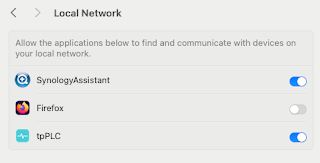
Note to self - Firefox and local connections
Whilst trying to hit my NAS from Firefox on my Mac, I kept seeing errors such as:- Unable to connect Firefox can’t establish a connection t...