Wednesday, 6 December 2017

Mozilla Firefox Quantum - Suppressing Autoplay Videos

So I mostly love the new Firefox 57, aka Quantum, although I have a  few niggles with it; my main gripe is that the LastPass plugin appears to have been totally borked.

One other issue - autoplay videos :-(

Given that I don't use Adobe Flash, I was somewhat grumpy to find that the BBC News site was full of videos that'd start auto-playing as soon as I hit the site.

Thankfully, the internet came to the rescue - AGAIN


This takes one off to: -


which gives the usual warning: -


Once there, search for the keyword autoplay, which returns two hits: -

media.autoplay.enabled;true
media.block-autoplay-until-in-foreground;true

Contrary to the article, I double-clicked on the FIRST item, and thus changed it to: -

media.autoplay.enabled;false

Job done :-)

Tuesday, 5 December 2017

Monitoring WebSphere Liberty Profile via JMX and REST over HTTPS

This is another of those pesky Work-in-Progress articles, and follows on from an earliest post: -

Using Nagios to monitor IBM HTTP Server and IBM WebSphere Liberty Profile

My objective is to have Nagios actively pull various Java-related attributes from WebSphere Liberty Profile, using the Java Management Extensions (JMX) API over REST over HTTPS.

This is what I've inferred thus far, using the Liberty REST Explorer: -


and a Google Chrome extension called Restlet

GET requests

Get a list of the available MBeans

https://mfp.uk.ibm.com:8443/IBMJMXConnectorREST/mbeans/

Choose Garbage Collection

https://mfp.uk.ibm.com:8443/IBMJMXConnectorREST/mbeans/java.lang%3Aname%3DCopy%2Ctype%3DGarbageCollector

Choose Total Memory Freed

https://mfp.uk.ibm.com:8443/IBMJMXConnectorREST/mbeans/java.lang%3Aname%3DCopy%2Ctype%3DGarbageCollector/attributes/TotalMemoryFreed

Choose Memory Used

https://mfp.uk.ibm.com:8443/IBMJMXConnectorREST/mbeans/java.lang%3Aname%3DCopy%2Ctype%3DGarbageCollector/attributes/MemoryUsed

Choose Operating System

https://mfp.uk.ibm.com:8443/IBMJMXConnectorREST/mbeans/java.lang%3Atype%3DOperatingSystem

Choose OS Name

https://mfp.uk.ibm.com:8443/IBMJMXConnectorREST/mbeans/java.lang%3Atype%3DOperatingSystem/attributes/Name

Choose JVM Stats

https://mfp.uk.ibm.com:8443/IBMJMXConnectorREST/mbeans/WebSphere%3Atype%3DJvmStats

Choose JVM Attributes

https://mfp.uk.ibm.com:8443/IBMJMXConnectorREST/mbeans/WebSphere%3Atype%3DJvmStats/attributes

Choose Used Memory

https://mfp.uk.ibm.com:8443/IBMJMXConnectorREST/mbeans/WebSphere%3Atype%3DJvmStats/attributes/UsedMemory

Choose GC Count

https://mfp.uk.ibm.com:8443/IBMJMXConnectorREST/mbeans/WebSphere%3Atype%3DJvmStats/attributes/GcCount

More to follow ...

From a WLP perspective, these are the features that I've currently got enabled, in this context: -

        <feature>monitor-1.0</feature>
        <feature>apiDiscovery-1.0</feature>
        <feature>ssl-1.0</feature>
        <feature>restConnector-1.0</feature>


Also, for the record, I'm using Liberty 17.0.0.3.

Using Nagios to monitor IBM HTTP Server and IBM WebSphere Liberty Profile

This ties up with a piece of work upon which I'm currently engaged.

I've configured Nagios 4.3.4 to test IBM HTTP Server (IHS) 8.5.5.12 and the MobileFirst Platform (MFP) runtime, which runs on WebSphere Liberty Profile 17.0.0.3.

This is using the out-of-the-box Nagios plugin called check_http: -

/usr/local/nagios/libexec/check_http

which can be invoked thusly: -

/usr/local/nagios/libexec/check_http -H mfp.uk.ibm.com -p 8443 -S

HTTP OK: HTTP/1.1 200 OK - 3710 bytes in 0.014 second response time |time=0.014478s;;;0.000000 size=3710B;;;0

/usr/local/nagios/libexec/check_http -H mfp.uk.ibm.com -p 8443 -S -u /index.html

HTTP OK: HTTP/1.1 200 OK - 3710 bytes in 0.029 second response time |time=0.028933s;;;0.000000 size=3710B;;;0

/usr/local/nagios/libexec/check_http -H mfp.uk.ibm.com -p 8443 -S -u /appcenterconsole/login.html

HTTP OK: HTTP/1.1 200 OK - 2781 bytes in 0.088 second response time |time=0.087591s;;;0.000000 size=2781B;;;0

In other words, the plugin has a few key parameters: -

-H hostname
-p port
-S HTTPS
-u URI

In brief, this is what I have configured in Nagios: -

sudo vi /usr/local/nagios/etc/servers/mfp.cfg

define host {
        use                             linux-server
        host_name                       mfp.uk.ibm.com
        alias                           MobileFirst Platform
        address                         192.168.153.131
        max_check_attempts              5
        check_period                    24x7
        notification_interval           30
        notification_period             24x7
}
define command {
        command_name                    check_http_with_args
        command_line                    $USER1$/check_http -H $HOSTADDRESS$ -S -p $ARG1$ -u $ARG2$
}
define service {
        use                             generic-service
        host_name                       mfp.uk.ibm.com
        service_description             PING
        check_command                   check_ping!100.0,20%!500.0,60%
}
define service {
        use                             generic-service
        host_name                       mfp.uk.ibm.com
        service_description             SSH
        check_command                   check_ssh
        notifications_enabled           0
}
define service {
        use                             generic-service
        host_name                       mfp.uk.ibm.com
        service_description             IHS_Welcome_Page
        check_command                   check_http_with_args!8443!/index.html
        notifications_enabled           0
}
define service {
        use                             generic-service
        host_name                       mfp.uk.ibm.com
        service_description             MFP_Login_Page
        check_command                   check_http_with_args!8443!/appcenterconsole
        notifications_enabled           0
}

You'll see that I've defined a new command - check_http_with_args - which reuses check_http, but adds arguments for -H, -p, -S and -u.

I've then defined two new services - IHS_Welcome_Page and MFP_Login_Page - which use this new command.

Finally, I reloaded the Nagios systemd service: -

sudo systemctl restart nagios.service

This is what I now see: -


 As you can see, the two new services on the MFP host both return HTTP 200 Success, which ties up with what I see in the IHS access_log: -

192.168.153.130 - - [05/Dec/2017:14:45:54 +0000] "GET /index.html HTTP/1.1" 200 3493
192.168.153.130 - - [05/Dec/2017:14:46:28 +0000] "GET /appcenterconsole/login.html HTTP/1.1" 200 2451
192.168.153.130 - - [05/Dec/2017:14:49:13 +0000] "GET /index.html HTTP/1.1" 200 3493
192.168.153.130 - - [05/Dec/2017:14:49:23 +0000] "GET /appcenterconsole HTTP/1.1" 302 -
192.168.153.130 - - [05/Dec/2017:14:51:38 +0000] "GET /appcenterconsole/login.html HTTP/1.1" 200 2451

If I change the MFP_Login_Page service to only use the /appcenterconsole URI, then I'll see the HTTP 302 Found response ( which is one of the Redirect response codes ).

If I stop IHS, Nagio shows me this: -


If I start IHS but stop MFP, Nagios shows me this: -


This is HTTP 500 Internal Server Error.

Source for check_http plugin here: -


and here: -


It's also worth noting that check_http has a number of other useful features, including the ability to check certificates: -


Again, this came from here -> http://linux.101hacks.com/unix/check-http/

Monday, 4 December 2017

WebSphere Liberty Profile - why doesn't HTTPS work ?

It took me a while to work out where I'd gone wrong earlier.

I was configuring a newly installed WebSphere Liberty Profile environment ( actually hosting IBM Mobile First Platform ) for HTTPS, and couldn't work out why the server wasn't listening on port 9443.

This is, in brief, what I did: -

Create Default Server

/opt/ibm/WebSphere/Liberty/bin/server create

Server defaultServer created.

Install MFP

/opt/ibm/InstallationManager/eclipse/tools/imcl -input /mnt/ResponseFiles/installMFP8.rsp -acceptLicense

***********************************************************************
Before you start using the product, you must deploy a MobileFirst Server to your application server. 
For more information about deploying projects with the Server Configuration Tool or command line tools, see 
the documentation at http://ibm.biz/knowctr#SSHS8R_8.0.0/com.ibm.worklight.deploy.doc/topics/c_deploy.html. 
***********************************************************************
Installed com.ibm.mobilefirst.foundation.server_8.0.0.20160610_0940 to the /opt/ibm/MFP directory.


Create WLP Keystore and Public/Private Keypair

/opt/ibm/WebSphere/Liberty/bin/securityUtility createSSLCertificate --server=defaultServer --password=passw0rd --validity=365

Configure WLP/MFP 

vi /opt/ibm/WebSphere/Liberty/usr/servers/defaultServer/server.xml

inserting: -

    <featureManager>
        <feature>ssl-1.0</feature>
    </featureManager>

    <keyStore id="defaultKeyStore" password="{xor}Lz4sLChvLTs=" />


Start MFP

/opt/ibm/WebSphere/Liberty/bin/server start

Check logs

tail -f /opt/ibm/WebSphere/Liberty/usr/servers/defaultServer/logs/console.log /opt/ibm/WebSphere/Liberty/usr/servers/defaultServer/logs/messages.log

Weirdly, whilst I saw this: -

[AUDIT   ] CWWKT0016I: Web application available (default_host): http://192.168.153.131:9080/ibm/api/
[AUDIT   ] CWWKT0016I: Web application available (default_host): http://192.168.153.131:9080/IBMJMXConnectorREST/
[AUDIT   ] CWWKT0016I: Web application available (default_host): http://192.168.153.131:9080/appcenterconsole/
[AUDIT   ] CWWKT0016I: Web application available (default_host): http://192.168.153.131:9080/applicationcenter/


I saw NO reference to port 9443.

Check WLP via HTTPS

curl —insecure https://mfp.uk.ibm.com:9443/

curl: (7) Failed connect to mfp.uk.ibm.com:9443; Connection refused

I must've spent 20 minutes tinkering with this, including looking at my server.xml : -

cat ../server.xml

<?xml version="1.0" encoding="UTF-8"?>
<server description="new server">

    <!-- Enable features -->
    <featureManager>
        <feature>jsp-2.3</feature>
    
        <!-- Begin of features added by IBM MobileFirst installer. -->
        <!-- The following lines will be removed when the application is uninstalled -->
        <feature>jdbc-4.1</feature>
        <feature>servlet-3.1</feature>
        <feature>appSecurity-2.0</feature>
        <feature>usr:MFPDecoderFeature-1.0</feature>
        <!-- End of features added by IBM MobileFirst installer. -->

        <feature>ssl-1.0</feature>
        <feature>restConnector-1.0</feature>

    </featureManager>

    <!-- To access this server from a remote client add a host attribute to the following element, e.g. host="*" -->
    <httpEndpoint id="defaultHttpEndpoint"
                  httpPort="9080"
                  httpsPort="9443" host="*" >
        <!-- Option soReuseAddr added by IBM MobileFirst installer. -->
        <tcpOptions soReuseAddr="true"/>
    <keyStore id="defaultKeyStore" password="{xor}Lz4sLChvLTs=" />

    </httpEndpoint>

Can you see what I did wrong ?

Yep, here it is: -

    <httpEndpoint id="defaultHttpEndpoint"
                  httpPort="9080"
                  httpsPort="9443" host="*" >
        <!-- Option soReuseAddr added by IBM MobileFirst installer. -->
        <tcpOptions soReuseAddr="true"/>
    <keyStore id="defaultKeyStore" password="{xor}Lz4sLChvLTs=" />

    </httpEndpoint>


For some STUPID reason, I put the keystore stanza INSIDE the httpEndpoint stanza.

Which won't do.

Once I fixed it: -

...
    <httpEndpoint id="defaultHttpEndpoint"
                  httpPort="9080"
                  httpsPort="9443" host="*" >
        <!-- Option soReuseAddr added by IBM MobileFirst installer. -->
        <tcpOptions soReuseAddr="true"/>

    </httpEndpoint>
    
    <keyStore id="defaultKeyStore" password="{xor}Lz4sLChvLTs=" />

and restarted WLP, things looked much better: -


<!DOCTYPE html>
<html>
<head>
<meta charset="utf-8">
<title>WebSphere Liberty 17.0.0.3</title>
<style>
body{
color: white;

doVersionCheck(latestReleasedVersion);
</script>
<script type="text/javascript" src="https://public.dhe.ibm.com/ibmdl/export/pub/software/websphere/wasdev/downloads/adminCenter-welcome.js"></script>
</html>


See, it's ALL about the position :-)


JKS Keystores - Pain with Passwords

I had a requirement to demonstrate how one could easily change the password of a JKS keystore that is being used by WebSphere Liberty Profile.

However, I kept seeing an annoying exception once I changed the password.

This was what I did: -

Create Keystore

/opt/ibm/WebSphere/Liberty/bin/securityUtility createSSLCertificate --server=defaultServer --password=passw0rd --validity=365

Created SSL certificate for server defaultServer. The certificate is created with CN=rhel7.uk.ibm.com,OU=defaultServer,O=ibm,C=us as the SubjectDN.

Add the following lines to the server.xml to enable SSL:

    <featureManager>
        <feature>ssl-1.0</feature>
    </featureManager>
    <keyStore id="defaultKeyStore" password="{xor}Lz4sLChvLTs=" />


I happily added the suggested lines to server.xml and all was well.

I then progressed: -

Validate Old Password

keytool -list -keystore /opt/ibm/WebSphere/Liberty/usr/servers/defaultServer/resources/security/key.jks -storepass passw0rd

Change the keystore password

keytool -storepasswd -new davehay -keystore /opt/ibm/WebSphere/Liberty/usr/servers/defaultServer/resources/security/key.jks -storepass passw0rd

Validate New Password

keytool -list -keystore /opt/ibm/WebSphere/Liberty/usr/servers/defaultServer/resources/security/key.jks -storepass davehay -v

This in effect changes the password FROM passw0rd TO davehay.

Generate the XOR Encoded version of the new password

/opt/ibm/WebSphere/Liberty/bin/securityUtility encode

which results in: -

{xor}Oz4pOjc+Jg==

which I entered into my server.xml

However, when I restarted Liberty and checked the messages.log file, I saw: -

[04/12/17 13:43:27:640 GMT] 0000001b com.ibm.ws.ssl.provider.AbstractJSSEProvider                 E CWPKI0813E: Error while trying to initialize the keymanager for the keystore [/opt/ibm/WebSphere/Liberty/usr/servers/defaultServer/resources/security/key.jks]. The private key password is not correct or the keystore has multiple private keys with different passwords.  This keystore can not be used for SSL.  Exception message is: [Cannot recover key].
[04/12/17 13:43:27:651 GMT] 0000001b com.ibm.ws.logging.internal.impl.IncidentImpl                I FFDC1015I: An FFDC Incident has been created: "java.security.UnrecoverableKeyException: Cannot recover key: invalid password for key in file '/opt/ibm/WebSphere/Liberty/usr/servers/defaultServer/resources/security/key.jks' com.ibm.ws.ssl.provider.IBMJSSEProvider getKeyTrustManagers" at ffdc_17.12.04_13.43.27.0.log
[04/12/17 13:43:27:684 GMT] 0000001b com.ibm.ws.logging.internal.impl.IncidentImpl                I FFDC1015I: An FFDC Incident has been created: "java.security.UnrecoverableKeyException: Cannot recover key: invalid password for key in file '/opt/ibm/WebSphere/Liberty/usr/servers/defaultServer/resources/security/key.jks' com.ibm.ws.ssl.config.SSLConfigManager initializeServerSSL" at ffdc_17.12.04_13.43.27.1.log


It took me a while, and then I realised what was going on.

When I created the keystore, the process also created a public/private key pair, which it stored within the … KEY STORE, using the SAME password id est passw0rd.

When I changed the password of the KEY STORE, I did NOT also change the password of the KEY itself.

So I updated my process: -

Change to new Password - storepass

keytool -storepasswd -new davehay -keystore /opt/ibm/WebSphere/Liberty/usr/servers/defaultServer/resources/security/key.jks -storepass passw0rd

Change to new Password - keypass

keytool -keypasswd -all -new davehay -keystore /opt/ibm/WebSphere/Liberty/usr/servers/defaultServer/resources/security/key.jks -keypass passw0rd -storepass davehay

Note that I'm using the OLD keystore password - passw0rd - as the OLD key password whilst setting the NEW key password with the NEW keystore password.

Simple eh ?

Validate New Password

keytool -list -keystore /opt/ibm/WebSphere/Liberty/usr/servers/defaultServer/resources/security/key.jks -storepass davehay -v

In summary, there's a KEYSTORE password and a KEY password; if you want them to be the same, you need to change BOTH.

Otherwise, I'd have to configure Liberty for TWO different passwords.

Easy when you know how :-)


And there's more - running WebSphere Liberty Profile via Linux scripts

Following on from this earlier post: -


here's a similar script to start a WebSphere Liberty Profile (WLP) runtime via systemd : -

Create the systemd script - as root

vi /etc/systemd/system/mfp.service

[Unit]
Description=IBM WebSphere Liberty Profile
After=network.target

[Service]
Type=forking
User=wasadmin
ExecStart=/opt/ibm/WebSphere/Liberty/bin/server start
ExecStop=/opt/ibm/WebSphere/Liberty/bin/server stop
PrivateTmp=true
LimitNOFILE=infinity

[Install]
WantedBy=multi-user.target


Reload systemd - as root

sudo systemctl daemon-reload

Start the service - as root

systemctl start mfp

Check the service status - as root

systemctl status mfp

● mfp.service - IBM WebSphere Liberty Profile
   Loaded: loaded (/etc/systemd/system/mfp.service; disabled; vendor preset: disabled)
   Active: active (running) since Mon 2017-12-04 21:29:54 GMT; 4s ago
  Process: 5730 ExecStart=/opt/ibm/WebSphere/Liberty/bin/server start (code=exited, status=0/SUCCESS)
 Main PID: 5753 (java)
   CGroup: /system.slice/mfp.service
           └─5753 /opt/ibm/Java/jre/bin/java -javaagent:/opt/ibm/WebSphere/Liberty/bin/tools/ws-javaagent.jar -Djava.awt.headless=true -jar /opt/ibm/WebSphere/Liberty/bin/tools/ws-server.jar defaultS...

Dec 04 21:29:47 mfp.uk.ibm.com systemd[1]: Starting IBM WebSphere Liberty Profile...
Dec 04 21:29:47 mfp.uk.ibm.com server[5730]: Starting server defaultServer.
Dec 04 21:29:54 mfp.uk.ibm.com server[5730]: Server defaultServer started with process ID 5753.
Dec 04 21:29:54 mfp.uk.ibm.com systemd[1]: Started IBM WebSphere Liberty Profile.


Stop the service - as root

systemctl stop mfp

And there we have it …

One additional thing - I needed to ensure that the JAVA_HOME variable was set in order that WLP could start up.

I did this using the server.env file: -

vi /opt/ibm/WebSphere/Liberty/usr/servers/defaultServer/server.env 

and appended: -

JAVA_HOME=/opt/ibm/Java/jre

Otherwise, I ended up with exceptions such as: -

Job for mfp.service failed because the control process exited with error code. See "systemctl status mfp.service" and "journalctl -xe" for details.

and: -

Dec 04 21:32:50 mfp.uk.ibm.com server[6066]: /opt/ibm/WebSphere/Liberty/bin/server: line 833: java: command not found

I suspect that this is because the root user is spawning new shells which aren't picking up the .bashrc for the wasadmin user.

Running IBM HTTP Server via Linux scripts and sudo - an update

This updates a post that I wrote back in 2012, which was based around Red Hat Enterprise Linux 6.

I've had another go at this, testing on Red Hat Enterprise Linux 7.4, and have a different solution.

In essence, RHEL 7 is now using systemd rather than chkconfig, so here's an alternative: -

Create the Service - as root

vi /etc/systemd/system/ibmhttpd.service  

[Unit]
Description=IBM HTTP Server
After=network.target

[Service]
Type=forking
PIDFile=/opt/ibm/HTTPServer/MFP/logs/httpd.pid
User=wasadmin
ExecStart=/opt/ibm/HTTPServer/bin/apachectl -k start -f /opt/ibm/HTTPServer/MFP/conf/httpd.conf
ExecStop=/opt/ibm/HTTPServer/bin/apachectl -k stop -f /opt/ibm/HTTPServer/MFP/conf/httpd.conf
PrivateTmp=true
LimitNOFILE=infinity

[Install]
WantedBy=multi-user.target

Reload systemd - as root

sudo systemctl daemon-reload

Start the service - as root

systemctl start ibmhttpd

Check the service status - as root

systemctl status ibmhttpd

Stop the service - as root

systemctl stop ibmhttpd

Register the service to auto-start - as root

systemctl enable ibmhttpd

This is somewhat simpler than the older chkconfig approach.

With thanks to this: -


and this: -


for inspiration.

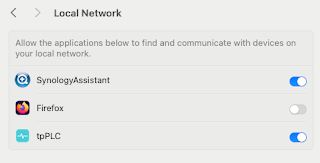
Note to self - Firefox and local connections

 Whilst trying to hit my NAS from Firefox on my Mac, I kept seeing errors such as:- Unable to connect Firefox can’t establish a connection t...