Back in the day, I chose to format my USB external drives using the Apple Mac OSX Hierarchical File System (HFS) format, aka HFS+ or HFSPlus.
This is sometimes a pain when I need to share files with colleagues using Microsoft Windows, but c'est la vie - it's their choice for using such an obscure OS :-)
More importantly, I was somewhat dismayed to find that the CentOS distribution that I've just started to play with does NOT include HFS+ support out-of-the-box.
This compares to Ubuntu, which ( afaik ) has had HFS+ support for some time now.
However, it was an easy problem to solve - after a quick(ish) Google search, I found this thread on the www.centos.org site, which recommends adding the elrepo.org repository to CentOS: -
$ rpm --import http://elrepo.org/RPM-GPG-KEY-elrepo.org
before downloading the required RPM file: -
$ rpm -Uvh http://elrepo.org/elrepo-release-6-4.el6.elrepo.noarch.rpm
and installing the HFS+ drivers: -
$ yum install kmod-hfsplus
As ever, job done - thanks, Internet, we love you :-)
Thursday, 29 December 2011

Creating a bootable USB key under Apple Mac OSX
I wanted to install a new (to me) Linux distribution - CentOS - onto my Thinkpad W500, and was looking to avoid finding and using a CD-ROM or DVD.
$ dd if=/dev/disk2 of=/dev/disk1 bs=1m
$ diskutil unmountDisk /dev/disk2
$ dd if=/dev/disk2 of=/dev/disk1 bs=1m
Having a spare USB thumb-drive kicking about, I was hoping that I could use that instead, and also "burn" the image from my Mac.
I'd already downloaded the CentOS ISO to my Mac Downloads folder, and had previously mounted it.
A quick Google search found me this MacRumours forum thread - how to "burn" an ISO to USB flash drive? - which provided a variety of answers, some positive, some not-so-positive.
Having said that, I scrolled to the very end of the thread, and found this post - Final Solution - from someone called Candlejack, which had the answer.
Basically, it's a bunch of Terminal commands :-)
$ diskutil list
/dev/disk0
#: TYPE NAME SIZE IDENTIFIER
0: GUID_partition_scheme *320.1 GB disk0
1: EFI 209.7 MB disk0s1
2: Apple_HFS Hard Disk 319.2 GB disk0s2
3: Apple_Boot Recovery HD 650.0 MB disk0s3
/dev/disk1
#: TYPE NAME SIZE IDENTIFIER
0: FDisk_partition_scheme *8.3 GB disk1
1: DOS_FAT_32 DISK_IMG 8.3 GB disk1s1
/dev/disk2
#: TYPE NAME SIZE IDENTIFIER
0: CentOS-6.2-x86_6 *731.9 MB disk2
#: TYPE NAME SIZE IDENTIFIER
0: GUID_partition_scheme *320.1 GB disk0
1: EFI 209.7 MB disk0s1
2: Apple_HFS Hard Disk 319.2 GB disk0s2
3: Apple_Boot Recovery HD 650.0 MB disk0s3
/dev/disk1
#: TYPE NAME SIZE IDENTIFIER
0: FDisk_partition_scheme *8.3 GB disk1
1: DOS_FAT_32 DISK_IMG 8.3 GB disk1s1
/dev/disk2
#: TYPE NAME SIZE IDENTIFIER
0: CentOS-6.2-x86_6 *731.9 MB disk2
$ diskutil unmountDisk /dev/disk1
Unmount of all volumes on disk1 was successful
$ dd if=/dev/disk2 of=/dev/disk1 bs=1m
dd: /dev/disk2: Resource busy
$ diskutil unmountDisk /dev/disk2
Unmount of all volumes on disk2 was successful
$ dd if=/dev/disk2 of=/dev/disk1 bs=1m
698+0 records in
698+0 records out
731906048 bytes transferred in 206.409147 secs (3545899 bytes/sec)
698+0 records out
731906048 bytes transferred in 206.409147 secs (3545899 bytes/sec)
Job done.
I was then able to boot the Thinkpad from the USB drive ( via the [F12] function key ) and install CentOS, far far quicker than I could've installed from a CD or DVD.
PS For the record, I've previously blogged about CentOS, with regard to installing IBM HTTP Server on it here.
Lightweight Third Party Authentication (LTPA) FAQs
I've blogged about LTPA in the past, as it's an important part of any Single Sign-On (SSO) configuration, especially where WebSphere and/or Domino are working together.
This FAQ document contains a useful set of answers to common questions, including: -
What happens when the Security Cache, LTPA Token timeout, and session time out?
I want to force my users to re-login after a set "inactivity timeout" period. How is WebSphere Application Server supposed to work with regard to session timeouts and LTPA timeout.
etc.
Definitely worth a look - Security Cache, LTPA Token, and Session Time Outs
Wednesday, 28 December 2011
IBM Tivoli Directory Integrator - Which Version is Which ?
I've got a folder on my USB hard disk called TDI70 within which I have three files: -
-rw-r--r-- 1 hayd hayd 68001502 2010-09-22 08:32 7.0.0-TIV-TDI-FP0005.zip
-rw-r--r-- 1 hayd hayd 403947520 2010-10-04 13:50 C1IU1ML.tar
-rw-r--r-- 1 hayd hayd 405719040 2010-09-22 08:12 C1IU2ML.tar
Now I'm trying to install TDI on a 32-bit Linux distribution ( Ubuntu 11.10 ), so which of the two TAR files do I use ?
I'm sure it's obvious .....
The trick was to expand one of the two files: -
tar xvf /tmp/C1IU1ML.tar
which included: -
linux_x86/
linux_x86/install_tdiv70_linux_x86.bin
linux_x86/install_tdiv70_setup.jar
This gives me a clue :-)
Therefore, I'm going to take a bet that: -
C1IU1ML / C1IU1ML.tar == 32-bit
C1IU2ML / C1IU2ML.tar == 64-bit
Make sense ?
-rw-r--r-- 1 hayd hayd 68001502 2010-09-22 08:32 7.0.0-TIV-TDI-FP0005.zip
-rw-r--r-- 1 hayd hayd 403947520 2010-10-04 13:50 C1IU1ML.tar
-rw-r--r-- 1 hayd hayd 405719040 2010-09-22 08:12 C1IU2ML.tar
Now I'm trying to install TDI on a 32-bit Linux distribution ( Ubuntu 11.10 ), so which of the two TAR files do I use ?
I'm sure it's obvious .....
The trick was to expand one of the two files: -
tar xvf /tmp/C1IU1ML.tar
which included: -
linux_x86/
linux_x86/install_tdiv70_linux_x86.bin
linux_x86/install_tdiv70_setup.jar
This gives me a clue :-)
Therefore, I'm going to take a bet that: -
C1IU1ML / C1IU1ML.tar == 32-bit
C1IU2ML / C1IU2ML.tar == 64-bit
Make sense ?
Printing from the iPad 2
Having been a happy iPad owner for some months now, it's always niggled that we cannot print from it to the Kodak ESP 3250 printer that's hard-wired ( via USB ) to my wife's Ubuntu laptop.

Finally, I invested some small amount of time in a Google search, and found the secret sauce.
Thanks to this blog -> Hartless By Design <- I found out how to enable the required AirPlay service, using a protocol called avahi which is installed as part of the Common Unix Printing System (CUPS) subsystem.
I've already blogged about Apple and CUPS earlier today as well as a purely Linux-related problem a few years back.
However, this particular article - AirPrint with Ubuntu 10.10 - did the job.
In essence, I needed to create a file - /etc/avahi/services/printer.service - and add the following content: -
<?xml version="1.0" standalone='no'?><!--*-nxml-*-->
<!DOCTYPE service-group SYSTEM "avahi-service.dtd">
<service-group>
<name>My Printer</name>
<service>
<type>_ipp._tcp</type>
<subtype>_universal._sub._ipp._tcp</subtype>
<port>631</port>
<txt-record>txtver=1</txt-record>
<txt-record>qtotal=1</txt-record>
<txt-record>rp=printers/My-Printer-CUPS-Name</txt-record>
<txt-record>ty=My Printer</txt-record>
<txt-record>adminurl=http://198.168.1.4:631/printers/My-Printer-CUPS-Name</txt-record>
<txt-record>note=My Printer</txt-record>
<txt-record>priority=0</txt-record>
<txt-record>product=virtual Printer</txt-record>
<txt-record>printer-state=3</txt-record>
<txt-record>printer-type=0x801046</txt-record>
<txt-record>Transparent=T</txt-record>
<txt-record>Binary=T</txt-record>
<txt-record>Fax=F</txt-record>
<txt-record>Color=T</txt-record>
<txt-record>Duplex=T</txt-record>
<txt-record>Staple=F</txt-record>
<txt-record>Copies=T</txt-record>
<txt-record>Collate=F</txt-record>
<txt-record>Punch=F</txt-record>
<txt-record>Bind=F</txt-record>
<txt-record>Sort=F</txt-record>
<txt-record>Scan=F</txt-record>
<txt-record>pdl=application/octet-stream,application/pdf,application/postscript,image/jpeg,image/png,image/urf</txt-record>
<txt-record>URF=W8,SRGB24,CP1,RS600</txt-record>
</service>
</service-group>
<!DOCTYPE service-group SYSTEM "avahi-service.dtd">
<service-group>
<name>My Printer</name>
<service>
<type>_ipp._tcp</type>
<subtype>_universal._sub._ipp._tcp</subtype>
<port>631</port>
<txt-record>txtver=1</txt-record>
<txt-record>qtotal=1</txt-record>
<txt-record>rp=printers/My-Printer-CUPS-Name</txt-record>
<txt-record>ty=My Printer</txt-record>
<txt-record>adminurl=http://198.168.1.4:631/printers/My-Printer-CUPS-Name</txt-record>
<txt-record>note=My Printer</txt-record>
<txt-record>priority=0</txt-record>
<txt-record>product=virtual Printer</txt-record>
<txt-record>printer-state=3</txt-record>
<txt-record>printer-type=0x801046</txt-record>
<txt-record>Transparent=T</txt-record>
<txt-record>Binary=T</txt-record>
<txt-record>Fax=F</txt-record>
<txt-record>Color=T</txt-record>
<txt-record>Duplex=T</txt-record>
<txt-record>Staple=F</txt-record>
<txt-record>Copies=T</txt-record>
<txt-record>Collate=F</txt-record>
<txt-record>Punch=F</txt-record>
<txt-record>Bind=F</txt-record>
<txt-record>Sort=F</txt-record>
<txt-record>Scan=F</txt-record>
<txt-record>pdl=application/octet-stream,application/pdf,application/postscript,image/jpeg,image/png,image/urf</txt-record>
<txt-record>URF=W8,SRGB24,CP1,RS600</txt-record>
</service>
</service-group>
replacing My Printer with the alias of the printer ( Kodak ), My-Printer-CUPS-Name with the "network" name of the printer as it appears in CUPS ( https://localhost:631/admin ) KODAK-ESP-3200-Series-AiO and the IP address - 198.168.1.4 - with the loopback IP address - 127.0.0.1.
Having done this, I needed to add a single line: -
ServerAlias *
to /etc/cups/cupsd.conf and then restart CUPS: -
$ sudo /etc/init.d/cups restart
From that point on, any print dialogue on the iPad ( I was actually trying to print an invoice from within Safari ), will show up Kodak as an AirPrint printer: -

Back in the game … if at first you don't succeed, read your own blog :-)
Every so often, I hit a problem that I know I've hit and, perhaps more importantly, overcome before.
Today was no exception, it's been bothering me for a number of months that I seem unable to print from my Macbook Pro to a Kodak printer, connected via USB to my wife's laptop ( running Ubuntu ).
I won't bore you with the gory details, but I seemed unable to automagically find the printer via the Print & Scan preferences page, and kept seeing errors such as this: -
Idle - "An unexpected error occurred. Check for problems at the printer and resubmit the job (100003)"
when printing, having manually added the printer.
Idle - "An unexpected error occurred. Check for problems at the printer and resubmit the job (100003)"
when printing, having manually added the printer.
To cut a long story short, I visited this very blog -> A Portal to a Portal <- and searched for CUPS and found this post -> SOLVED - Accessing CUPS printer from Mac OSX Snow Leopard
The solution is to run the following command from a terminal session: -
$ cupsctl BrowseRemoteProtocols=CUPS
Prior to doing this, the cupctl command returned this: -
_debug_logging=1
_remote_admin=0
_remote_any=0
_remote_printers=1
_share_printers=0
_user_cancel_any=0
BrowseLocalProtocols=
BrowseRemoteProtocols=DefaultAuthType=Basic
JobPrivateAccess=default
JobPrivateValues=default
SubscriptionPrivateAccess=default
SubscriptionPrivateValues=default
SystemGroup=admin
SystemGroupAuthKey=system.print.admin
WebInterface=Yes
_remote_admin=0
_remote_any=0
_remote_printers=1
_share_printers=0
_user_cancel_any=0
BrowseLocalProtocols=
BrowseRemoteProtocols=DefaultAuthType=Basic
JobPrivateAccess=default
JobPrivateValues=default
SubscriptionPrivateAccess=default
SubscriptionPrivateValues=default
SystemGroup=admin
SystemGroupAuthKey=system.print.admin
WebInterface=Yes
Now it returns this: -
_debug_logging=1
_remote_admin=0
_remote_any=0
_remote_printers=1
_share_printers=0
_user_cancel_any=0
BrowseLocalProtocols=
BrowseRemoteProtocols=CUPS
DefaultAuthType=Basic
JobPrivateAccess=default
JobPrivateValues=default
SubscriptionPrivateAccess=default
SubscriptionPrivateValues=default
SystemGroup=admin
SystemGroupAuthKey=system.print.admin
WebInterface=Yes
_remote_admin=0
_remote_any=0
_remote_printers=1
_share_printers=0
_user_cancel_any=0
BrowseLocalProtocols=
BrowseRemoteProtocols=CUPS
DefaultAuthType=Basic
JobPrivateAccess=default
JobPrivateValues=default
SubscriptionPrivateAccess=default
SubscriptionPrivateValues=default
SystemGroup=admin
SystemGroupAuthKey=system.print.admin
WebInterface=Yes
Having done this, I can now see and, perhaps more importantly, print to the Kodak.
One addition to the blog post - I'm now running OSX 10.7.2 aka Lion, whereas I was previously running Snow Leopard, and the Linux box is now running Ubuntu 11.04 Natty Narwhal.
Nice :-)
Tuesday, 27 December 2011
Installing IBM HTTP Server 7 on CentOS Linux 6.2
Working with a friend to get IHS v7 working on CentOS 6.2, he ( and eventually I ) were hitting the following exception: -

Usage:
htpasswd [-cmdpsD] passwordfile username
htpasswd -b[cmdpsD] passwordfile username password
htpasswd -n[mdps] username
htpasswd -nb[mdps] username password
-c Create a new file.
-n Don't update file; display results on stdout.
-m Force MD5 encryption of the password.
-d Force CRYPT encryption of the password (default).
-p Do not encrypt the password (plaintext).
-s Force SHA encryption of the password.
-b Use the password from the command line rather than prompting for it.
-D Delete the specified user.
On Windows, NetWare and TPF systems the '-m' flag is used by default.
On all other systems, the '-p' flag will probably not work.
(Dec 27, 2011 8:09:47 PM), Process, com.ibm.ws.install.ihs.ismp.actions.ExecWizardActionFromDirectory, err, java.io.IOException: Cannot run program "/opt/IBM/HTTPServer/bin/htpasswd" (in directory "/opt/IBM/HTTPServer"): java.io.IOException: error=2, No such file or directory
STACK_TRACE: 15
java.io.IOException: Cannot run program "/opt/IBM/HTTPServer/bin/htpasswd" (in directory "/opt/IBM/HTTPServer"): java.io.IOException: error=2, No such file or directory
at java.lang.ProcessBuilder.start(ProcessBuilder.java:470)
at java.lang.Runtime.exec(Runtime.java:604)
at com.ibm.ws.install.ihs.ismp.actions.ExecWizardActionFromDirectory.executeProcess(ExecWizardActionFromDirectory.java:202)
at com.installshield.wizard.StandardWizardListener.currentBeanChanged(StandardWizardListener.java:106)
at com.installshield.wizard.Wizard$RunThread.run(Wizard.java:1569)
Caused by: java.io.IOException: java.io.IOException: error=2, No such file or directory
at java.lang.Throwable.<init>(Throwable.java:67)
at java.lang.UNIXProcess.<init>(UNIXProcess.java:197)
at java.lang.ProcessImpl.start(ProcessImpl.java:101)
at java.lang.ProcessBuilder.start(ProcessBuilder.java:463)
... 6 more
In order to prove and, hopefully, resolve the issue, I downloaded CentOS ( CentOS-6.2-x86_64-LiveCD ) as a 700 MB ISO image. From this, I was able to quickly create a new virtual machine using VMware Fusion, and go through the IHS installation.
Given that I'm using a 64-bit version of CentOS, I also needed to install the corresponding package of IHS - for the record, IHS v7 is a 32-bit binary BUT is delivered in two packages; one 32-bit and one 64-bit.
I downloaded the x86-64 version of the product via this image: -
IBM WebSphere Application Server V7.0 Supplements (1 of 2) for Linux on x86-64 bit (IBM HTTP Server, Web Server Plug-ins and Update Installer) Multilingual (C1G00ML) - 246 MB
as detailed here: -
and unpacked the corresponding TAR file - C1G00ML.tar.gz.
$ cd /tmp
$ mkdir IHS
$ cd IHS
$ tar xvzf C1G00ML.tar.gz
and ran the installation routine: -
$ ./IHS/install
This ran through, with me taking all the defaults, and completed BUT displayed the following message: -
When I looked at the log.txt file, I saw the exception referred to previously: -
<snip>
java.io.IOException: Cannot run program "/opt/IBM/HTTPServer/bin/htpasswd" (in directory "/opt/IBM/HTTPServer"): java.io.IOException: error=2, No such file or directory
</snip>
</snip>
When I attempted to manually run the htpasswd program: -
$ /opt/IBM/HTTPServer/htpasswd
it failed with: -
bash: /opt/IBM/HTTPServer/bin/htpasswd: /lib/ld-linux.so.2: bad ELF interpreter: No such file or directory
A quick Google search threw up this hit which suggested that I was missing the ld-linux.so.2 library ( which actually ties up with the above error !! ) and, more importantly, showed me the way to go home …..
Simply put, I needed to install the library as follows: -
$ yum install ld-linux.so.2
which downloaded 4.4 MB of code: -
================================================================================
Package Arch Version Repository Size
================================================================================
Installing:
glibc i686 2.12-1.47.el6 base 4.3 M
Installing for dependencies:
nss-softokn-freebl i686 3.12.9-11.el6 base 116 k
Transaction Summary
================================================================================
Install 2 Package(s)
Package Arch Version Repository Size
================================================================================
Installing:
glibc i686 2.12-1.47.el6 base 4.3 M
Installing for dependencies:
nss-softokn-freebl i686 3.12.9-11.el6 base 116 k
Transaction Summary
================================================================================
Install 2 Package(s)
Having done that, htpasswd now runs perfectly: -
$ /opt/IBM/HTTPServer/bin/htpasswd
Usage:
htpasswd [-cmdpsD] passwordfile username
htpasswd -b[cmdpsD] passwordfile username password
htpasswd -n[mdps] username
htpasswd -nb[mdps] username password
-c Create a new file.
-n Don't update file; display results on stdout.
-m Force MD5 encryption of the password.
-d Force CRYPT encryption of the password (default).
-p Do not encrypt the password (plaintext).
-s Force SHA encryption of the password.
-b Use the password from the command line rather than prompting for it.
-D Delete the specified user.
On Windows, NetWare and TPF systems the '-m' flag is used by default.
On all other systems, the '-p' flag will probably not work.
I removed and reinstalled IHS; I still see the "Partial Success" message, but no longer see any nasty exceptions relating to htpasswd and I'm able to start/stop/use IHS without problems.
:-)
Subscribe to:
Posts (Atom)
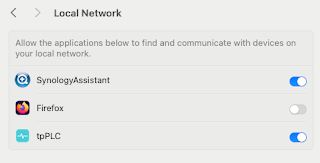
Note to self - Firefox and local connections
Whilst trying to hit my NAS from Firefox on my Mac, I kept seeing errors such as:- Unable to connect Firefox can’t establish a connection t...