Cody Burleson has pulled together some useful 10-minute sessions on Lotus WCM. Currently, we have these two: -
Lunch Byte - WCM Security
Lunch Byte - Understanding WCM Libraries
but I'm sure that more are coming.
Go on, check them out, you know you want to ...
Tuesday, 12 October 2010

Friday, 8 October 2010
Securing Lotus Connections via Tivoli Access Manager for e-Business ( WebSEAL )
One of our UK customers, City University, has been having fun and games with LC and TAM/WebSEAL integration - their chief WebSphere guru, Sharon Bellamy, has blogged about her experiences here, as has the TAM consultant from a Tivoli partner, Pirean, Stephen Swann. Stephen also references a guide from our own En Hui Chen, on the Wiki here. This is something that I have not yet tried, as we didn't need to use WebSEAL with Connections, as we were accessing Connections only through Portal ( via WebSEAL ) rather than directly as in Sharon's case.
Problems editing Gnome 2.30.2 menus on Ubuntu 10.04
Having performed many many installations of various WebSphere products since I first installed Ubuntu 10.04 on my new Thinkpad back in June, I had a plethora of IBM WebSphere menus appearing in the Applications menu that, for me, sits in the top-left corner of the screen, flagged with the Ubuntu logo.
I'd tried, and failed, to remove these entries many many times - I'd right-click on Applications, and choose Edit Menus.
This would bring up the appropriate tool ( cleverly called Alacarte - A La Carte ), which would show all of the entries, but I'd be unable to edit them.
If I ran the alacarte command as root ( having previously run sudo bash ), I could see the entries for the root user, but not for my own local user - hayd.
I then ran the alacarte command from a terminal session, as hayd, and noticed that, when I tried to change a menu entry, I was getting: -
IOError: [Errno 13] Permission denied: '/home/hayd/.config/menus/applications.menu.undo-0'
Therefore, via my root console, I changed the ownership of the appropriate directory structure: -
chown -R hayd:hayd /home/hayd/.config/
and retried the update using alacarte and I'm in like Flynn, with a nice neat set of menus :-)
I'd tried, and failed, to remove these entries many many times - I'd right-click on Applications, and choose Edit Menus.
This would bring up the appropriate tool ( cleverly called Alacarte - A La Carte ), which would show all of the entries, but I'd be unable to edit them.
If I ran the alacarte command as root ( having previously run sudo bash ), I could see the entries for the root user, but not for my own local user - hayd.
I then ran the alacarte command from a terminal session, as hayd, and noticed that, when I tried to change a menu entry, I was getting: -
IOError: [Errno 13] Permission denied: '/home/hayd/.config/menus/applications.menu.undo-0'
Therefore, via my root console, I changed the ownership of the appropriate directory structure: -
chown -R hayd:hayd /home/hayd/.config/
and retried the update using alacarte and I'm in like Flynn, with a nice neat set of menus :-)
Tuesday, 5 October 2010
ephox WebRadar
Had an interesting meeting yesterday with Tracey and Natalie from ephox at which they showed version 2 of their new WebRadar product.
This looks to be rather useful, as it allows a Lotus Web Content Management (WCM) customer to analyse and report on their web content, using meta-data to provide details of, for example, content item owners, content recently published, content soon to expire etc.
In addition, along with reporting, the user can also "multi-edit" a series of content items to, for example, quickly change the owner or add a piece of missing meta-data.
The tool includes a search crawler-like scheduled task to analyse the content and a 100% portal-based dashboard to provide the reporting, with single-click access to the original content item ( assuming the user has authority ) and the ability to export the reports to CSV files for off-line analysis.
ephox have an evaulation option up on their website here: -
http://webradarwcm.com/
as well as a set of videos showing how it works.
This, along with EditLive! and the newly released TinyMCE, are a good set of tools, and are worth a look.
This looks to be rather useful, as it allows a Lotus Web Content Management (WCM) customer to analyse and report on their web content, using meta-data to provide details of, for example, content item owners, content recently published, content soon to expire etc.
In addition, along with reporting, the user can also "multi-edit" a series of content items to, for example, quickly change the owner or add a piece of missing meta-data.
The tool includes a search crawler-like scheduled task to analyse the content and a 100% portal-based dashboard to provide the reporting, with single-click access to the original content item ( assuming the user has authority ) and the ability to export the reports to CSV files for off-line analysis.
ephox have an evaulation option up on their website here: -
http://webradarwcm.com/
as well as a set of videos showing how it works.
This, along with EditLive! and the newly released TinyMCE, are a good set of tools, and are worth a look.
Sunday, 3 October 2010
Skype on Linux - Hiding off-line contacts
Having been a great fan of Skype for many many years, it's always annoyed me that, on the Linux platform, I couldn't see an obvious way to hide contacts that are off-line - on Mac and Windows, this is an easy option, yet on the Linux platform it's always been something I couldn't achieve.
Having spent a half hour or so online this morning, I finally found this undocumented "hack" and it's embarrassingly simple - press the keys [Ctrl] and [U] to hide those contacts who are off-line; pressing [Ctrl] + [U] again "unhides" the contacts again.
So, in short, use [Ctrl] + [U] to hide and "unhide" the contact list.
Easy when you know how :-)
Having spent a half hour or so online this morning, I finally found this undocumented "hack" and it's embarrassingly simple - press the keys [Ctrl] and [U] to hide those contacts who are off-line; pressing [Ctrl] + [U] again "unhides" the contacts again.
So, in short, use [Ctrl] + [U] to hide and "unhide" the contact list.
Easy when you know how :-)
Saturday, 2 October 2010
Adjusting the picture size on the Samsung D75
I'm sharing this, because it's something that I wasn't able to find online or in the manual.
We have a Samsung D75 digital camera, which gets used occasionally ( as the Fuji Finepix S7000 does most of the heavy lifting ).
At present, the D75 has a measly 32 MB SD card, and we were finding that a few pictures would wipe it out.
Looking at the display at the rear of the camera, it turned out that we were taking 3M pictures ( which are a lot bigger than the usual 1M that the camera used to do ).
I assumed that this could be changed via the camera's Setup menu, but sadly no such setting existed.
In a moment of madness, I tried pressing other buttons on the rear of the camera, until I found the one marked with a rubbish/trash can - this is usually used to delete pictures from the camera's disk. However, it has a second role; in normal picture taking mode ( as opposed to review mode ), it has a +/- icon on it, which allows one to increase the resolution ( to a massive 7M ) or reduce it downwards - guess which way I went.
So, now you know ....
PS Am going to buy a slightly larger SD card for the camera, given that a 4 GB card is about £5 now :-)
I may then get to use the camera more often - rather than relying upon the rather awful camera in my BlackBerry .....
We have a Samsung D75 digital camera, which gets used occasionally ( as the Fuji Finepix S7000 does most of the heavy lifting ).
At present, the D75 has a measly 32 MB SD card, and we were finding that a few pictures would wipe it out.
Looking at the display at the rear of the camera, it turned out that we were taking 3M pictures ( which are a lot bigger than the usual 1M that the camera used to do ).
I assumed that this could be changed via the camera's Setup menu, but sadly no such setting existed.
In a moment of madness, I tried pressing other buttons on the rear of the camera, until I found the one marked with a rubbish/trash can - this is usually used to delete pictures from the camera's disk. However, it has a second role; in normal picture taking mode ( as opposed to review mode ), it has a +/- icon on it, which allows one to increase the resolution ( to a massive 7M ) or reduce it downwards - guess which way I went.
So, now you know ....
PS Am going to buy a slightly larger SD card for the camera, given that a 4 GB card is about £5 now :-)
I may then get to use the camera more often - rather than relying upon the rather awful camera in my BlackBerry .....
Friday, 1 October 2010
Adding Java to Mozilla Firefox 3.6.9 on Red Hat Enterprise Linux 5.5
Having helped a friend get this working earlier, I thought I'd document it pour la encourager les autres.
Download the latest Java 6 JRE as an RPM from: -
http://javadl.sun.com/webapps/download/AutoDL?BundleId=40906
This comes down as a 20 MB .BIN file: -
[root@wpx7 ~]# ls -al jre-6u21-linux-i586-rpm.bin
-rw-r--r-- 1 root root 20694516 Oct 1 16:01 jre-6u21-linux-i586-rpm.bin
which needs to be set as executable - I choose to do this using the chmod +x command: -
[root@wpx7 ~]# chmod +x /root/jre-6u21-linux-i586-rpm.bin
[root@wpx7 ~]# ls -al jre-6u21-linux-i586-rpm.bin
-rwxr-xr-x 1 root root 20694516 Oct 1 16:01 jre-6u21-linux-i586-rpm.bin
Once this is done, the .BIN file can be executed to carry out the RPM installation: -
[root@wpx7 ~]# /root/jre-6u21-linux-i586-rpm.bin
Unpacking...
Checksumming...
Extracting...
UnZipSFX 5.50 of 17 February 2002, by Info-ZIP (Zip-Bugs@lists.wku.edu).
inflating: jre-6u21-linux-i586.rpm
Preparing... ########################################### [100%]
1:jre ########################################### [100%]
Unpacking JAR files...
rt.jar...
jsse.jar...
charsets.jar...
localedata.jar...
plugin.jar...
javaws.jar...
deploy.jar...
Done.
Having done this, I need to identify the current JRE in use: -
[root@wpx7 ~]# which java
/usr/bin/java
[root@wpx7 ~]# ls -al /usr/bin/java
lrwxrwxrwx 1 root root 22 Jul 2 06:44 /usr/bin/java -> /etc/alternatives/java
and then replace it with the newly downloaded/installed Java: -
[root@wpx7 ~]# rm /usr/bin/java
rm: remove symbolic link `/usr/bin/java'? y
[root@wpx7 ~]# ln -s /usr/java/latest/bin/java /usr/bin/
Having done this, the command which java still returns: -
/usr/bin/java
but we have a different version: -
[root@wpx7 ~]# java -version
java version "1.6.0_21"
Java(TM) SE Runtime Environment (build 1.6.0_21-b06)
Java HotSpot(TM) Client VM (build 17.0-b16, mixed mode, sharing)
The final trick is to add the new JRE's plugin to Firefox.
Now this has changed over the years, so it took me a while to find it - in the current Firefox 3.6 world, the easiest way is to create a link to the plugin in a directory underneath the user's home directory.
First we locate the plugin: -
[root@wpx7 ~]# locate libnpjp2
/opt/IBM/WebSphere/AppServer/java/jre/lib/i386/libnpjp2.so
/opt/IBM/WebSphere/AppServer/updateinstaller/java/lib/i386/libnpjp2.so
/usr/java/jre1.6.0_21/lib/i386/libnpjp2.so
As you can see, I already have the WebSphere JRE, but I'm looking to use the Sun JRE within my browser, so I need the third copy of the plugin: -
[root@wpx7 ~]# ls -al /usr/java/jre1.6.0_21/lib/i386/libnpjp2.so
-rwxr-xr-x 1 root root 77510 Jun 22 09:47 /usr/java/jre1.6.0_21/lib/i386/libnpjp2.so
The plugin will need to go into a directory called: -
/root/.mozilla/plugins
( as root is my user )
Although the .mozilla directory exists under my home directory ( /root or ~ for short ), the plugins subdirectory does not.
[root@wpx7 ~]# mkdir /root/.mozilla/plugins
Well, it does now :-)
I now need to create a symbolic link ( aka short-cut ) from the plugin file ( libnpjp2.so ) into this new directory: -
[root@wpx7 ~]# ln -s /usr/java/jre1.6.0_21/lib/i386/libnpjp2.so /root/.mozilla/plugins/
Having done this, I can start Firefox, and type the URL/command: -
about:plugins
into the Address bar.
This, amongst other things, shows me: -
Java(TM) Plug-in 1.6.0_21
File: libnpjp2.so
Version:
The next generation Java plug-in for Mozilla browsers.
MIME Type Description Suffixes Enabled
application/x-java-vm Java™ Plug-in Yes
application/x-java-applet Java™ Plug-in Applet Yes
application/x-java-applet;version=1.1 Java™ Plug-in Yes
application/x-java-applet;version=1.1.1 Java™ Plug-in Yes
application/x-java-applet;version=1.1.2 Java™ Plug-in Yes
....
Having done this, I can now test the newly installed and configured Java plugin, by opening a browser session to: -
http://www.java.com/en/download/help/testvm.xml
at which point I see an applet loading, and: -
Your Java is working
Java update available
Your Java configuration is as follows:
Vendor: Sun Microsystems Inc.
Version: Java 6 Update 21
Operating System: Linux 2.6.18-194.11.3.el5
Architecture: i386
which is nice :-)
Download the latest Java 6 JRE as an RPM from: -
http://javadl.sun.com/webapps/download/AutoDL?BundleId=40906
This comes down as a 20 MB .BIN file: -
[root@wpx7 ~]# ls -al jre-6u21-linux-i586-rpm.bin
-rw-r--r-- 1 root root 20694516 Oct 1 16:01 jre-6u21-linux-i586-rpm.bin
which needs to be set as executable - I choose to do this using the chmod +x command: -
[root@wpx7 ~]# chmod +x /root/jre-6u21-linux-i586-rpm.bin
[root@wpx7 ~]# ls -al jre-6u21-linux-i586-rpm.bin
-rwxr-xr-x 1 root root 20694516 Oct 1 16:01 jre-6u21-linux-i586-rpm.bin
Once this is done, the .BIN file can be executed to carry out the RPM installation: -
[root@wpx7 ~]# /root/jre-6u21-linux-i586-rpm.bin
Unpacking...
Checksumming...
Extracting...
UnZipSFX 5.50 of 17 February 2002, by Info-ZIP (Zip-Bugs@lists.wku.edu).
inflating: jre-6u21-linux-i586.rpm
Preparing... ########################################### [100%]
1:jre ########################################### [100%]
Unpacking JAR files...
rt.jar...
jsse.jar...
charsets.jar...
localedata.jar...
plugin.jar...
javaws.jar...
deploy.jar...
Done.
Having done this, I need to identify the current JRE in use: -
[root@wpx7 ~]# which java
/usr/bin/java
[root@wpx7 ~]# ls -al /usr/bin/java
lrwxrwxrwx 1 root root 22 Jul 2 06:44 /usr/bin/java -> /etc/alternatives/java
and then replace it with the newly downloaded/installed Java: -
[root@wpx7 ~]# rm /usr/bin/java
rm: remove symbolic link `/usr/bin/java'? y
[root@wpx7 ~]# ln -s /usr/java/latest/bin/java /usr/bin/
Having done this, the command which java still returns: -
/usr/bin/java
but we have a different version: -
[root@wpx7 ~]# java -version
java version "1.6.0_21"
Java(TM) SE Runtime Environment (build 1.6.0_21-b06)
Java HotSpot(TM) Client VM (build 17.0-b16, mixed mode, sharing)
The final trick is to add the new JRE's plugin to Firefox.
Now this has changed over the years, so it took me a while to find it - in the current Firefox 3.6 world, the easiest way is to create a link to the plugin in a directory underneath the user's home directory.
First we locate the plugin: -
[root@wpx7 ~]# locate libnpjp2
/opt/IBM/WebSphere/AppServer/java/jre/lib/i386/libnpjp2.so
/opt/IBM/WebSphere/AppServer/updateinstaller/java/lib/i386/libnpjp2.so
/usr/java/jre1.6.0_21/lib/i386/libnpjp2.so
As you can see, I already have the WebSphere JRE, but I'm looking to use the Sun JRE within my browser, so I need the third copy of the plugin: -
[root@wpx7 ~]# ls -al /usr/java/jre1.6.0_21/lib/i386/libnpjp2.so
-rwxr-xr-x 1 root root 77510 Jun 22 09:47 /usr/java/jre1.6.0_21/lib/i386/libnpjp2.so
The plugin will need to go into a directory called: -
/root/.mozilla/plugins
( as root is my user )
Although the .mozilla directory exists under my home directory ( /root or ~ for short ), the plugins subdirectory does not.
[root@wpx7 ~]# mkdir /root/.mozilla/plugins
Well, it does now :-)
I now need to create a symbolic link ( aka short-cut ) from the plugin file ( libnpjp2.so ) into this new directory: -
[root@wpx7 ~]# ln -s /usr/java/jre1.6.0_21/lib/i386/libnpjp2.so /root/.mozilla/plugins/
Having done this, I can start Firefox, and type the URL/command: -
about:plugins
into the Address bar.
This, amongst other things, shows me: -
Java(TM) Plug-in 1.6.0_21
File: libnpjp2.so
Version:
The next generation Java plug-in for Mozilla browsers.
MIME Type Description Suffixes Enabled
application/x-java-vm Java™ Plug-in Yes
application/x-java-applet Java™ Plug-in Applet Yes
application/x-java-applet;version=1.1 Java™ Plug-in Yes
application/x-java-applet;version=1.1.1 Java™ Plug-in Yes
application/x-java-applet;version=1.1.2 Java™ Plug-in Yes
....
Having done this, I can now test the newly installed and configured Java plugin, by opening a browser session to: -
http://www.java.com/en/download/help/testvm.xml
at which point I see an applet loading, and: -
Your Java is working
Java update available
Your Java configuration is as follows:
Vendor: Sun Microsystems Inc.
Version: Java 6 Update 21
Operating System: Linux 2.6.18-194.11.3.el5
Architecture: i386
which is nice :-)
Subscribe to:
Posts (Atom)
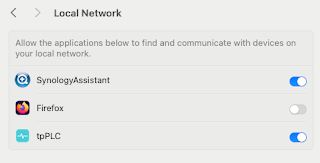
Note to self - Firefox and local connections
Whilst trying to hit my NAS from Firefox on my Mac, I kept seeing errors such as:- Unable to connect Firefox can’t establish a connection t...