Showing posts sorted by relevance for query podman. Sort by date Show all posts

Wednesday, 16 March 2022

Podman say "No"

Whilst tinkering with podman today, I saw this: -

podman images

Cannot connect to Podman. Please verify your connection to the Linux system using `podman system connection list`, or try `podman machine init` and `podman machine start` to manage a new Linux VM

Error: unable to connect to Podman socket: server API version is too old. Client "4.0.0" server "3.4.4"

I tried: -

podman system connection list

which returned: -

Name                         URI                                                          Identity                                 Default

podman-machine-default       ssh://core@localhost:58173/run/user/1000/podman/podman.sock  /Users/hayd/.ssh/podman-machine-default  true

podman-machine-default-root  ssh://root@localhost:58173/run/podman/podman.sock            /Users/hayd/.ssh/podman-machine-default  false

which wasn't terribly useful, and then checked the machine: -

podman machine list

NAME                     VM TYPE     CREATED      LAST UP            CPUS        MEMORY      DISK SIZE

podman-machine-default*  qemu        2 weeks ago  Currently running  1           2.147GB     10.74GB

Having checked versions: -

podman --version

podman version 4.0.2

I tried restarting the machine: -

podman machine stop

Machine "podman-machine-default" stopped successfully

podman machine start

Starting machine "podman-machine-default"

INFO[0000] waiting for clients...                       

INFO[0000] new connection from  to /var/folders/b5/8vqr9tt54v94jxzs0_k2qq2m0000gn/T/podman/qemu_podman-machine-default.sock 

Waiting for VM ...

INFO[0012] Socket forward established: /Users/hayd/.local/share/containers/podman/machine/podman-machine-default/podman.sock to /run/user/0/podman/podman.sock 

ERRO[0013] Couldn't restablish ssh tunnel on path: /run/user/0/podman/podman.sock: ssh: rejected: connect failed (open failed) 

WARN[0013] API socket failed ping test                  


This machine is currently configured in rootless mode. If your containers

require root permissions (e.g. ports < 1024), or if you run into compatibility

issues with non-podman clients, you can switch using the following command: 


podman machine set --rootful


API forwarding listening on: /Users/hayd/.local/share/containers/podman/machine/podman-machine-default/podman.sock


The system helper service is not installed; the default Docker API socket

address can't be used by podman. If you would like to install it run the

following command:


sudo /usr/local/Cellar/podman/4.0.2/bin/podman-mac-helper install


You can still connect Docker API clients by setting DOCKER_HOST using the

following command in your terminal session:


export DOCKER_HOST='unix:///Users/hayd/.local/share/containers/podman/machine/podman-machine-default/podman.sock'


Machine "podman-machine-default" started successfully

but still saw the same issue: -

podman images

Cannot connect to Podman. Please verify your connection to the Linux system using `podman system connection list`, or try `podman machine init` and `podman machine start` to manage a new Linux VM

Error: unable to connect to Podman socket: server API version is too old. Client "4.0.0" server "3.4.4"

I've installed podman via Homebrew: -

brew info podman

podman: stable 4.0.2 (bottled), HEAD

Tool for managing OCI containers and pods

https://podman.io/

/usr/local/Cellar/podman/4.0.2 (172 files, 48.7MB) *

  Poured from bottle on 2022-03-15 at 12:23:57

From: https://github.com/Homebrew/homebrew-core/blob/HEAD/Formula/podman.rb

License: Apache-2.0

==> Dependencies

Build: go ✘, go-md2man ✘

Required: qemu ✔

==> Options

--HEAD

Install HEAD version

==> Caveats

zsh completions have been installed to:

  /usr/local/share/zsh/site-functions

==> Analytics

install: 10,898 (30 days), 36,534 (90 days), 104,199 (365 days)

install-on-request: 10,891 (30 days), 36,516 (90 days), 104,182 (365 days)

build-error: 13 (30 days)

Nothing was terribly informative, so I chose to nuke the machine: -

podman machine rm

The following files will be deleted:


/Users/hayd/.ssh/podman-machine-default

/Users/hayd/.ssh/podman-machine-default.pub

/Users/hayd/.config/containers/podman/machine/qemu/podman-machine-default.ign

/Users/hayd/.local/share/containers/podman/machine/qemu/podman-machine-default_fedora-coreos-35.20220213.2.0-qemu.x86_64.qcow2

/Users/hayd/.config/containers/podman/machine/qemu/podman-machine-default.json


Are you sure you want to continue? [y/N] y

and create a new one: -

podman machine init

Downloading VM image: fedora-coreos-35.20220305.dev.0-qemu.x86_64.qcow2.xz: done  

Extracting compressed file

Image resized.

Machine init complete

To start your machine run:


podman machine start

podman machine start

Starting machine "podman-machine-default"
INFO[0000] waiting for clients...                       
INFO[0000] new connection from  to /var/folders/b5/8vqr9tt54v94jxzs0_k2qq2m0000gn/T/podman/qemu_podman-machine-default.sock 
Waiting for VM ...
INFO[0018] Socket forward established: /Users/hayd/.local/share/containers/podman/machine/podman-machine-default/podman.sock to /run/user/501/podman/podman.sock 

This machine is currently configured in rootless mode. If your containers
require root permissions (e.g. ports < 1024), or if you run into compatibility
issues with non-podman clients, you can switch using the following command: 

podman machine set --rootful

API forwarding listening on: /Users/hayd/.local/share/containers/podman/machine/podman-machine-default/podman.sock

The system helper service is not installed; the default Docker API socket
address can't be used by podman. If you would like to install it run the
following command:

sudo /usr/local/Cellar/podman/4.0.2/bin/podman-mac-helper install

You can still connect Docker API clients by setting DOCKER_HOST using the
following command in your terminal session:

export DOCKER_HOST='unix:///Users/hayd/.local/share/containers/podman/machine/podman-machine-default/podman.sock'

Machine "podman-machine-default" started successfully

and then: -

podman images

REPOSITORY  TAG         IMAGE ID    CREATED     SIZE

which looked better.

I started a container: -

podman run -it alpine:latest sh

Resolved "alpine" as an alias (/etc/containers/registries.conf.d/000-shortnames.conf)
Trying to pull docker.io/library/alpine:latest...
Getting image source signatures
Copying blob sha256:59bf1c3509f33515622619af21ed55bbe26d24913cedbca106468a5fb37a50c3
Copying config sha256:c059bfaa849c4d8e4aecaeb3a10c2d9b3d85f5165c66ad3a4d937758128c4d18
Writing manifest to image destination
Storing signatures
/ # uname -a
Linux c4367a60c3d4 5.15.18-200.fc35.x86_64 #1 SMP Sat Jan 29 13:54:17 UTC 2022 x86_64 Linux
/ # exit

and then re-checked the downloaded images: -

podman images

REPOSITORY                TAG         IMAGE ID      CREATED       SIZE
docker.io/library/alpine  latest      c059bfaa849c  3 months ago  5.87 MB

podman version

Client:       Podman Engine
Version:      4.0.2
API Version:  4.0.2
Go Version:   go1.17.8

Built:      Wed Mar  2 14:04:36 2022
OS/Arch:    darwin/amd64

Server:       Podman Engine
Version:      4.0.2
API Version:  4.0.2
Go Version:   go1.16.14

Built:      Thu Mar  3 14:56:56 2022
OS/Arch:    linux/amd64

Monday, 4 October 2021

Podman - pruning

So, back in the Docker days, I wrote a basic little script called prune.sh which would ... prune containers that had exited: -

#!/usr/bin/env bash
echo "Removing Docker containers that have Exited"
docker rm `docker ps -a|grep Exited|awk '{print $1}'`
echo "Completed"

so wanted to do much the same now I'm into podman

My starting position is that I've got two containers, one recently exited and one running: -

podman ps -a

CONTAINER ID  IMAGE                                                               COMMAND               CREATED         STATUS                     PORTS                   NAMES
413adb675c62  docker.io/library/hello-world:latest                                /hello                37 seconds ago  Exited (0) 38 seconds ago  0.0.0.0:8080->8080/tcp  hopeful_vaughan
408ce1f9513f  us.icr.io/demo_time/hello_world_nginx_june_2021:latest  nginx -g daemon o...  32 seconds ago  Up 32 seconds ago          0.0.0.0:8443->443/tcp   zealous_brattain

so I want to remove them both.

Now obviously I don't want to be bother typing in the container ID or name, so lets just get a list of the IDs: -

podman ps -a | grep -v CONTAINER | awk '{print $1}'

413adb675c62
408ce1f9513f

and then use that in a loop to remove the unwanted containers: -

for i in $(podman ps -a | grep -v CONTAINER | awk '{print $1}'); do podman rm $i; done

413adb675c62
Error: cannot remove container 408ce1f9513f8056497d9e6353dd9b210c59d38eafe30c698f202ba6f240babe as it is running - running or paused containers cannot be removed without force: container state improper

so that's a 50% success.

Perhaps I need to add in a podman stop before the podman rm like this: -

podman ps -a

CONTAINER ID  IMAGE                                                               COMMAND               CREATED             STATUS                         PORTS                   NAMES
408ce1f9513f  us.icr.io/demo_time/hello_world_nginx_june_2021:latest  nginx -g daemon o...  7 minutes ago       Exited (0) 49 seconds ago      0.0.0.0:8443->443/tcp   zealous_brattain
43a6797e1036  docker.io/library/hello-world:latest                                /hello                About a minute ago  Exited (0) About a minute ago  0.0.0.0:8080->8080/tcp  hopeful_robinson

for i in $(podman ps -a | grep -v CONTAINER | awk '{print $1}'); do podman stop $i && podman rm $i; done

408ce1f9513f
408ce1f9513f
43a6797e1036
43a6797e1036

podman ps -a

CONTAINER ID  IMAGE       COMMAND     CREATED     STATUS      PORTS       NAMES

I can do much the same for the images, if I want my prune to be really really ruthless: -

for i in $(podman images | grep -v REPOSITORY | awk '{print $1}'); do podman rmi $i; done

Untagged: docker.io/library/hello-world:latest
Deleted: feb5d9fea6a5e9606aa995e879d862b825965ba48de054caab5ef356dc6b3412
Untagged: us.icr.io/demo_time/hello_world_nginx_june_2021:latest
Deleted: c5318a40be88ede4e70c8c11f552a765c1c8aa5965ebd428da0b4766c2546968

So here's my final script: -

#!/usr/bin/env bash

echo "Removing containers"

for i in $(podman ps -a | grep -v CONTAINER | awk '{print $1}'); do podman stop $i && podman rm $i; done

echo "Removing images"

for i in $(podman images | grep -v REPOSITORY | awk '{print $1}'); do podman rmi $i; done

echo "Done"

~/prune.sh
 
Removing containers
854a1937c347
854a1937c347
ERRO[12181] accept tcp [::]:8443: use of closed network connection 
95ef5827777e
95ef5827777e
Removing images
Untagged: docker.io/library/hello-world:latest
Deleted: feb5d9fea6a5e9606aa995e879d862b825965ba48de054caab5ef356dc6b3412
Untagged: us.icr.io/demo_time/hello_world_nginx_june_2021:latest
Deleted: c5318a40be88ede4e70c8c11f552a765c1c8aa5965ebd428da0b4766c2546968
Done

podman ps -a

CONTAINER ID  IMAGE       COMMAND     CREATED     STATUS      PORTS       NAMES

podman images

REPOSITORY  TAG         IMAGE ID    CREATED     SIZE

Tuesday, 26 October 2021

Ooops, Podman broke my IBM Container Registry - well, kinda

I was digging into an IBM Container Registry (ICR), specifically to look at an image that I'd just built/pushed.

This is on a Mac upon which I've installed Podman, to replace Docker Desktop, as per previous posts.

Having logged into IBM Cloud ( I have a script for that ), I logged into the ICR instance: -

ic cr login

which responded: -

Logging in to 'us.icr.io'...

FAILED

Failed to 'docker login' to 'us.icr.io' with error: Cannot connect to Podman. Please verify your connection to the Linux system using `podman system connection list`, or try `podman machine init` and `podman machine start` to manage a new Linux VM

Error: unable to connect to Podman. failed to create sshClient: Connection to bastion host (ssh://core@localhost:53095/run/user/1000/podman/podman.sock) failed.: dial tcp [::1]:53095: connect: connection refused

At which point, I realised where I'd gone wrong - I'd rebooted my Mac since last I did this, and, at a guess, the Podman Machine doesn't autostart.

I manually started it: -

podman machine start

INFO[0000] waiting for clients...                       

INFO[0000] listening tcp://0.0.0.0:7777                 

INFO[0000] new connection from  to /var/folders/b5/8vqr9tt54v94jxzs0_k2qq2m0000gn/T/podman/qemu_podman-machine-default.sock 

Waiting for VM ...

Machine "podman-machine-default" started successfully

and then attempted to log into ICR: -

ic cr login

Logging in to 'us.icr.io'...

Logged in to 'us.icr.io'.


OK

Next step is to find out how to autostart the Podman Machine "service" .... 

Monday, 4 October 2021

Podman - my first time

Now that things are a-changin' with Docker Desktop, I wanted to give podman a try.

I'm running macOS 11.6 Big Sur and have Homebrew installed: -

brew --version

Homebrew 3.2.14
Homebrew/homebrew-core (git revision 161852c41e5; last commit 2021-10-01)
Homebrew/homebrew-cask (git revision 486624192d; last commit 2021-10-01)

so simply installed podman via brew install podman.

Having installed, I checked the version of podman thusly: -

podman version

Client:
Version:      3.4.0
API Version:  3.4.0
Go Version:   go1.17.1
Built:        Thu Sep 30 19:44:31 2021
OS/Arch:      darwin/amd64
Server:
Version:      3.3.1
API Version:  3.3.1
Go Version:   go1.16.6
Built:        Mon Aug 30 21:46:36 2021
OS/Arch:      linux/amd64

Starting at the beginning, I tried ( and sadly failed ) to run the stock Hello World image: -

podman run hello-world

Resolved "hello-world" as an alias (/etc/containers/registries.conf.d/000-shortnames.conf)
Trying to pull docker.io/library/hello-world:latest...
Getting image source signatures
Copying blob sha256:2db29710123e3e53a794f2694094b9b4338aa9ee5c40b930cb8063a1be392c54
Copying config sha256:feb5d9fea6a5e9606aa995e879d862b825965ba48de054caab5ef356dc6b3412
Writing manifest to image destination
Storing signatures
Error: error preparing container f8dee00901c488f0362af2ffe6e8736a41a609890bfc2f3f8863349932cb050d for attach: error configuring network namespace for container f8dee00901c488f0362af2ffe6e8736a41a609890bfc2f3f8863349932cb050d: error adding pod confident_panini_confident_panini to CNI network "podman": unexpected end of JSON input

Thankfully, GitHub had the answer: -


which says in part: -

Should be fixed once podman 3.4 lands in CoreOS, as workaround you have to forward at least one port, e.g. -p 8080.

This is a duplicate of: -


which says, in part: -

TLDR, the bug is that you cannot use the machine plugin without ports.

Given this, I tried the circumvention ( even though Hello World doesn't actually need a port ) : -

podman run -p 8080:8080 hello-world

Hello from Docker!
This message shows that your installation appears to be working correctly.

To generate this message, Docker took the following steps:
 1. The Docker client contacted the Docker daemon.
 2. The Docker daemon pulled the "hello-world" image from the Docker Hub.
    (amd64)
 3. The Docker daemon created a new container from that image which runs the
    executable that produces the output you are currently reading.
 4. The Docker daemon streamed that output to the Docker client, which sent it
    to your terminal.

To try something more ambitious, you can run an Ubuntu container with:
 $ docker run -it ubuntu bash

Share images, automate workflows, and more with a free Docker ID:
 https://hub.docker.com/

For more examples and ideas, visit:
 https://docs.docker.com/get-started/

~ $ ERRO[170262] accept tcp [::]:8080: use of closed network connection 

Given the GitHub issues, and noting that the "server" side of Podman is still 3.3.1 : -

podman version

Client:
Version:      3.4.0
API Version:  3.4.0
Go Version:   go1.17.1
Built:        Thu Sep 30 19:44:31 2021
OS/Arch:      darwin/amd64

Server:
Version:      3.3.1
API Version:  3.3.1
Go Version:   go1.16.6
Built:        Mon Aug 30 21:46:36 2021
OS/Arch:      linux/amd64

I'll keep an eye on the issue etc. and see when we see a fix for the server side ....

And there's more - podman in action

Following on from my two earlier posts: -

Podman - my first time

Podman and Homebrew and Docker - Permission to launch ...

here we go, using Podman to run a container from a "Here's one I created earlier" container image that hosts Nginx on the internal container port of 443 using SSL/TLS : -

Starting position - no containers nor images

podman ps -a

CONTAINER ID  IMAGE       COMMAND     CREATED     STATUS      PORTS       NAMES

podman images

REPOSITORY  TAG         IMAGE ID    CREATED     SIZE

Logging into IBM Container Registry

export APIKEY="<THIS IS WHERE MY API KEY GOES>"

echo $APIKEY | podman login us.icr.io --username iamapikey --password-stdin

Login Succeeded!

Pulling image

podman pull us.icr.io/demo_time/hello_world_nginx_june_2021:latest

Trying to pull us.icr.io/demo_time/hello_world_nginx_june_2021:latest...

Getting image source signatures
Checking if image destination supports signatures
Copying blob sha256:5843afab387455b37944e709ee8c78d7520df80f8d01cf7f861aae63beeddb6b
Copying blob sha256:0dc18a5274f2c43405a2ecccd3b10c159e3141b963a899c1f8127fd921a919dc
Copying blob sha256:48a0ee941dcdebbf017f21b46c5dd6f6ee81f8086e9347e852a067cf6f18209a
Copying blob sha256:2446243a1a3fbd03fffa8180f51dee385c4c5dbd91a84ebcdb6958f0e42cf764
Copying blob sha256:cbf0756b41fb647e1222f78d79397c27439b0c3a9b27aafbdd34aa5b72bd6a49
Copying blob sha256:c72750a979b985e3c3d6299106d90b0cff7e0b833a53ac02fcb7d76bd5fe4066
Copying blob sha256:48a0ee941dcdebbf017f21b46c5dd6f6ee81f8086e9347e852a067cf6f18209a
Copying blob sha256:45b6990e7dbfc9c43a357f0eb0ff074f159ed75c6ed865d0d9dad33a028cc2a2
Copying blob sha256:cbf0756b41fb647e1222f78d79397c27439b0c3a9b27aafbdd34aa5b72bd6a49
Copying blob sha256:5e158c5bf01f5e088f575e2fbc228bf6412be3c3c203d27d8a54e81eb9dc469e
Copying blob sha256:5843afab387455b37944e709ee8c78d7520df80f8d01cf7f861aae63beeddb6b
Copying blob sha256:2446243a1a3fbd03fffa8180f51dee385c4c5dbd91a84ebcdb6958f0e42cf764
Copying blob sha256:2a7c6912841852e1c853229bd6a6e02035b47a39aec2e98d5a2b0168a843d879
Copying blob sha256:c72750a979b985e3c3d6299106d90b0cff7e0b833a53ac02fcb7d76bd5fe4066
Copying blob sha256:449e432369550bb7d8e8d7424208c98b20e2fa419c885b5786523597afe613f1
Copying blob sha256:5e158c5bf01f5e088f575e2fbc228bf6412be3c3c203d27d8a54e81eb9dc469e
Copying blob sha256:0dc18a5274f2c43405a2ecccd3b10c159e3141b963a899c1f8127fd921a919dc
Copying blob sha256:747e67851ee5fae34759ef37ad7aa7fc1a3f547a47d949ba03fcf6a8aa391146
Copying blob sha256:45b6990e7dbfc9c43a357f0eb0ff074f159ed75c6ed865d0d9dad33a028cc2a2
Copying blob sha256:2a7c6912841852e1c853229bd6a6e02035b47a39aec2e98d5a2b0168a843d879
Copying blob sha256:747e67851ee5fae34759ef37ad7aa7fc1a3f547a47d949ba03fcf6a8aa391146
Copying blob sha256:0217b8cca4864fe2a874053cae58c1d3d195dc5763fb081b1939e241c4f58ed3
Copying blob sha256:449e432369550bb7d8e8d7424208c98b20e2fa419c885b5786523597afe613f1
Copying blob sha256:b6f423348fcd82b9ce715e06704d4ab65f5a7ae41ddc2c4fff8806a66c57ee93
Copying blob sha256:0217b8cca4864fe2a874053cae58c1d3d195dc5763fb081b1939e241c4f58ed3
Copying blob sha256:b6f423348fcd82b9ce715e06704d4ab65f5a7ae41ddc2c4fff8806a66c57ee93
Copying config sha256:c5318a40be88ede4e70c8c11f552a765c1c8aa5965ebd428da0b4766c2546968
Writing manifest to image destination
Storing signatures
c5318a40be88ede4e70c8c11f552a765c1c8aa5965ebd428da0b4766c2546968

Verify pull

podman images

REPOSITORY                                                   TAG         IMAGE ID      CREATED      SIZE
us.icr.io/demo_time/hello_world_nginx_june_2021  latest      c5318a40be88  2 weeks ago  36.8 MB

Create a container

Note that we're using the --detach CLI parameter to run it as a daemon and the 

podman run --detach --publish 8443:443 us.icr.io/demo_time/hello_world_nginx_june_2021

1ac8b1b735d9c1407a143e09f71a86d39ed27b12777a4c2425f1196ae21b9f50

Verify running container

podman ps

CONTAINER ID  IMAGE                                                               COMMAND               CREATED         STATUS             PORTS                  NAMES
1ac8b1b735d9  us.icr.io/demo_time/hello_world_nginx_june_2021:latest  nginx -g daemon o...  26 seconds ago  Up 26 seconds ago  0.0.0.0:8443->443/tcp  heuristic_euclid

Validate HTTPS listener

netstat -an | grep 8443

tcp46      0      0  *.8443                 *.*                    LISTEN     

Validate HTTPS endpoint

openssl s_client -connect localhost:8443 </dev/null

...

SSL handshake has read 2262 bytes and written 289 bytes
---
New, TLSv1/SSLv3, Cipher is ECDHE-RSA-AES256-GCM-SHA384
Server public key is 4096 bit
Secure Renegotiation IS supported
Compression: NONE
Expansion: NONE
No ALPN negotiated
SSL-Session:
    Protocol  : TLSv1.2
    Cipher    : ECDHE-RSA-AES256-GCM-SHA384
...

Test Nginx from the CLI

curl --insecure https://localhost:8443

- Note that we use the --insecure CLI parameter because Nginx is presenting a self-signed SSL certificate that cURL won't automagically trust

<html>
  <head>
    <title>Hello World</title>
  </head>
  <body>
    <div class="info">
      <p>
        <h2>
          <span>Welcome to IBM Hyper Protect ...</span>
        </h2>
      </p>
      <p>
        <h2>
          <span>Message of the Day .... Drink More Herbal Tea!!</span>
        </h2>
      </p>
      <p>
        <h2>
          <span>( and, of course, Hello World! )</span>
        </h2>
      </p>
    </div>
  </body>
</html>

Test Nginx from a browser

- Note that I'm using Firefox as Chrome has decided that it's just too secure to allow self-signed certificates 😁


Stop the container

podman stop 1ac8b1b735d9

ERRO[7790] accept tcp [::]:8443: use of closed network connection 
1ac8b1b735d9

Remove the container

podman rm 1ac8b1b735d9

1ac8b1b735d9

Remove the image

podman rmi us.icr.io/demo_time/hello_world_nginx_june_2021:latest

Untagged: us.icr.io/demo_time/hello_world_nginx_june_2021:latest
Deleted: c5318a40be88ede4e70c8c11f552a765c1c8aa5965ebd428da0b4766c2546968

Tuesday, 15 February 2022

Podman ate my hard disk ....

Well, not quite

docker build -t hello-world:latest -f Dockerfile .

STEP 1/9: FROM nginx:mainline-alpine

Resolving "nginx" using unqualified-search registries (/etc/containers/registries.conf.d/999-podman-machine.conf)

Trying to pull docker.io/library/nginx:mainline-alpine...

Getting image source signatures

Copying blob sha256:f2303c6c88653b9a6739d50f611c170b9d97d161c6432409c680f6b46a5f112f

Copying blob sha256:59bf1c3509f33515622619af21ed55bbe26d24913cedbca106468a5fb37a50c3

Copying blob sha256:8d6ba530f6489d12676d7f61628427d067243ba4a3a512c3e28813b977cb3b0e

Copying blob sha256:5288d7ad7a7f84bdd19c1e8f0abb8684b5338f3da86fe9ae1d7f0e9bc2de6595

Copying blob sha256:39e51c61c033442d00c40a30b2a9ed01f40205875fbd8664c50b4dc3e99ad5cf

Copying blob sha256:ee6f71c6f4a82b2afd01f92bdf6be0079364d03020e8a2c569062e1c06d3822b

Copying blob sha256:59bf1c3509f33515622619af21ed55bbe26d24913cedbca106468a5fb37a50c3

Copying blob sha256:f2303c6c88653b9a6739d50f611c170b9d97d161c6432409c680f6b46a5f112f

Copying blob sha256:5288d7ad7a7f84bdd19c1e8f0abb8684b5338f3da86fe9ae1d7f0e9bc2de6595

Copying blob sha256:39e51c61c033442d00c40a30b2a9ed01f40205875fbd8664c50b4dc3e99ad5cf

Copying blob sha256:8d6ba530f6489d12676d7f61628427d067243ba4a3a512c3e28813b977cb3b0e

Copying blob sha256:ee6f71c6f4a82b2afd01f92bdf6be0079364d03020e8a2c569062e1c06d3822b

Error: error creating build container: writing blob: storing blob to file "/var/tmp/storage979763649/1": write /var/tmp/storage979763649/1: no space left on device

GitHub to the rescue: -

Hitting "Error committing the finished image" "no space left on device" due to nonoptimized use of disk #3846

and easy to resolve - nuke the Podman machine (VM): -

podman machine rm

The following files will be deleted:


/Users/hayd/.ssh/podman-machine-default

/Users/hayd/.ssh/podman-machine-default.pub

/Users/hayd/.config/containers/podman/machine/qemu/podman-machine-default.ign

/Users/hayd/.local/share/containers/podman/machine/qemu/podman-machine-default_fedora-coreos-34.20210919.2.0-qemu.x86_64.qcow2

/Users/hayd/.config/containers/podman/machine/qemu/podman-machine-default.json


Are you sure you want to continue? [y/N] y

and create a new one: -

podman machine init

and start it: -

podman machine start

and now we're golden: -

docker build -t hello-world:latest -f Dockerfile .

STEP 1/9: FROM nginx:mainline-alpine

Resolving "nginx" using unqualified-search registries (/etc/containers/registries.conf.d/999-podman-machine.conf)

Trying to pull docker.io/library/nginx:mainline-alpine...

Getting image source signatures

Copying blob sha256:f2303c6c88653b9a6739d50f611c170b9d97d161c6432409c680f6b46a5f112f

Copying blob sha256:59bf1c3509f33515622619af21ed55bbe26d24913cedbca106468a5fb37a50c3

Copying blob sha256:8d6ba530f6489d12676d7f61628427d067243ba4a3a512c3e28813b977cb3b0e

Copying blob sha256:5288d7ad7a7f84bdd19c1e8f0abb8684b5338f3da86fe9ae1d7f0e9bc2de6595

Copying blob sha256:39e51c61c033442d00c40a30b2a9ed01f40205875fbd8664c50b4dc3e99ad5cf

Copying blob sha256:ee6f71c6f4a82b2afd01f92bdf6be0079364d03020e8a2c569062e1c06d3822b

Copying config sha256:bef258acf10dc257d641c47c3a600c92f87be4b4ce4a5e4752b3eade7533dcd9

Writing manifest to image destination

Storing signatures

STEP 2/9: RUN apk -U upgrade

fetch https://dl-cdn.alpinelinux.org/alpine/v3.15/main/x86_64/APKINDEX.tar.gz

fetch https://dl-cdn.alpinelinux.org/alpine/v3.15/community/x86_64/APKINDEX.tar.gz

(1/5) Upgrading busybox (1.34.1-r3 -> 1.34.1-r4)

Executing busybox-1.34.1-r4.post-upgrade

(2/5) Upgrading ca-certificates-bundle (20191127-r7 -> 20211220-r0)

(3/5) Upgrading libcrypto1.1 (1.1.1l-r7 -> 1.1.1l-r8)

(4/5) Upgrading libssl1.1 (1.1.1l-r7 -> 1.1.1l-r8)

(5/5) Upgrading ssl_client (1.34.1-r3 -> 1.34.1-r4)

Executing busybox-1.34.1-r4.trigger

Executing ca-certificates-20211220-r0.trigger

OK: 26 MiB in 42 packages

--> 068ffaec855

STEP 3/9: RUN apk --no-cache upgrade apk-tools

fetch https://dl-cdn.alpinelinux.org/alpine/v3.15/main/x86_64/APKINDEX.tar.gz

fetch https://dl-cdn.alpinelinux.org/alpine/v3.15/community/x86_64/APKINDEX.tar.gz

OK: 26 MiB in 42 packages

--> b5be6306f16

STEP 4/9: RUN apk update && apk upgrade && apk --no-cache add openssl

fetch https://dl-cdn.alpinelinux.org/alpine/v3.15/main/x86_64/APKINDEX.tar.gz

fetch https://dl-cdn.alpinelinux.org/alpine/v3.15/community/x86_64/APKINDEX.tar.gz

v3.15.0-282-g323523f173 [https://dl-cdn.alpinelinux.org/alpine/v3.15/main]

v3.15.0-283-g26a4fc70a6 [https://dl-cdn.alpinelinux.org/alpine/v3.15/community]

OK: 15857 distinct packages available

OK: 26 MiB in 42 packages

fetch https://dl-cdn.alpinelinux.org/alpine/v3.15/main/x86_64/APKINDEX.tar.gz

fetch https://dl-cdn.alpinelinux.org/alpine/v3.15/community/x86_64/APKINDEX.tar.gz

(1/1) Installing openssl (1.1.1l-r8)

Executing busybox-1.34.1-r4.trigger

OK: 26 MiB in 43 packages

--> ebf24d56671

STEP 5/9: RUN rm /etc/nginx/conf.d/*

--> 495424849fd

STEP 6/9: RUN openssl req -subj '/C=GB/O=IBM/CN=david_hay.uk.ibm.com' -new -newkey rsa:4096 -x509 -sha256 -days 365 -nodes -out /etc/nginx/nginx.crt -keyout /etc/nginx/nginx.key

Generating a RSA private key

......................................++++

.........++++

writing new private key to '/etc/nginx/nginx.key'

-----

--> 5ce7989df6c

STEP 7/9: ADD nginx.conf /etc/nginx/

--> facfc3c7d2d

STEP 8/9: ADD hello.html /usr/share/nginx/html/index.html

--> 65560b925f2

STEP 9/9: EXPOSE 443

COMMIT hello-world:latest

--> e8c50868858

Successfully tagged localhost/hello-world:latest

e8c508688581ab7c21289d270e821caaa34ed4a7e5e5a1242909ef826005b567

Wednesday, 6 October 2021

Podman broke my IBM Cloud

As per my earlier posts, I'm all over Podman at the moment.

Having removed Docker Desktop, I then realised that this broke the IBM Cloud CLI tool, specifically the Container Registry plugin: -

ic cr login

FAILED

Could not locate 'docker'. Check your 'docker' installation and path.

Of course, Docker isn't installed, and thus is no longer in the path: -

which docker

which returns NADA!

But Podman is there: -

which podman

/usr/local/bin/podman

so I created an alias/shortcut/symbolic link between the two: -

ln -s `which podman` /usr/local/bin/docker

so now Docker is back: -

which docker

/usr/local/bin/docker

and is remarkably similar to Podman: -

docker --version

docker version 3.4.0

podman --version

podman version 3.4.0

and now the cloud is happy: -

ic cr login

Logging in to 'us.icr.io'...

Logged in to 'us.icr.io'.


OK


Monday, 4 October 2021

Podman and Homebrew and Docker - Permission to launch ...

Following my earlier post: -

Podman - my first time

and harking back to an older post: -

Homebrew on macOS - Docker says "No" - well, kinda

I thought I'd update Homebrew: -

brew upgrade

Updating Homebrew...
==> Auto-updated Homebrew!
Updated 2 taps (homebrew/core and homebrew/cask).
==> New Formulae
ca-certificates                            clickhouse-odbc                            cmake-docs                                 texlive
==> Updated Formulae
Updated 187 formulae.
==> New Casks
plistedplus
==> Updated Casks
Updated 116 casks.
==> Upgrading 14 outdated packages:
git-lfs 2.13.3 -> 3.0.1
coreutils 8.32 -> 9.0
podman 3.4.0 -> 3.4.0_1
yq 4.9.6 -> 4.13.3
putty 0.75 -> 0.76
maven 3.8.1 -> 3.8.2
htop 3.0.5 -> 3.1.0
openjdk 16.0.1 -> 17
openssl@1.1 1.1.1l -> 1.1.1l_1
kubernetes-cli 1.21.2 -> 1.22.2
fltk 1.3.6 -> 1.3.7
libzip 1.8.0 -> 1.8.0_1
helm 3.6.1 -> 3.7.0
jpeg-turbo 2.1.0 -> 2.1.1
...
Removing: /Users/hayd/Library/Caches/Homebrew/libidn2_bottle_manifest--2.3.1... (5.2KB)
Removing: /Users/hayd/Library/Caches/Homebrew/guile_bottle_manifest--3.0.7... (6.3KB)
Removing: /Users/hayd/Library/Caches/Homebrew/rust_bottle_manifest--1.51.0... (6.4KB)
Removing: /Users/hayd/Library/Caches/Homebrew/node_bottle_manifest--16.2.0... (9.6KB)
Removing: /Users/hayd/Library/Caches/Homebrew/fltk_bottle_manifest--1.3.6... (4.9KB)
Removing: /Users/hayd/Library/Caches/Homebrew/yq_bottle_manifest--4.9.3... (4.3KB)
Removing: /Users/hayd/Library/Caches/Homebrew/python@3.8_bottle_manifest--3.8.10... (13.7KB)
Removing: /Users/hayd/Library/Caches/Homebrew/node_bottle_manifest--16.1.0... (9KB)
Removing: /Users/hayd/Library/Caches/Homebrew/libtasn1_bottle_manifest--4.17.0... (4.5KB)
Removing: /Users/hayd/Library/Caches/Homebrew/yq_bottle_manifest--4.8.0... (4.3KB)
Removing: /Users/hayd/Library/Caches/Homebrew/gnutls_bottle_manifest--3.6.16... (11KB)
Removing: /Users/hayd/Library/Caches/Homebrew/putty_bottle_manifest--0.75... (4.2KB)
Removing: /Users/hayd/Library/Caches/Homebrew/pyenv_bottle_manifest--1.2.27... (16.0KB)
Removing: /Users/hayd/Library/Caches/Homebrew/kubernetes-cli_bottle_manifest--1.21.1... (4.3KB)
Removing: /Users/hayd/Library/Caches/Homebrew/python@3.9_bottle_manifest--3.9.5... (12.5KB)
Removing: /Users/hayd/Library/Caches/Homebrew/pyenv_bottle_manifest--2.0.0... (16.6KB)
Removing: /Users/hayd/Library/Caches/Homebrew/libssh2_bottle_manifest--1.9.0_1... (5.8KB)
Removing: /Users/hayd/Library/Logs/Homebrew/fdupes... (64B)
Removing: /Users/hayd/Library/Logs/Homebrew/pcre2... (64B)
Error: Permission denied @ apply2files - /usr/local/lib/docker/cli-plugins

The computer said "No".

So we've got some hangover from Docker Desktop, which I'd uninstalled by dragging Docker.app from the Applications folder to the Trashcan.

Thankfully, I remembered the previous incident of this on my 2014 Mac mini.

Knowing that this was permission-related, I checked the offending folder - /usr/local/lib/docker - as follows: -

ls -al /usr/local/lib/docker/

total 0
drwxr-xr-x    3 root  admin    96 15 Sep 17:25 .
drwxrwxr-x  294 hayd  admin  9408  1 Oct 14:52 ..
lrwxr-xr-x    1 root  admin    55 15 Sep 17:25 cli-plugins -> /Applications/Docker.app/Contents/Resources/cli-plugins

and just fixed up the permissions: -

sudo chown -R hayd:admin /usr/local/lib

and then re-ran the Brew upgrade: -

brew upgrade

and now it's happy: -

Bash completion has been installed to:
  /usr/local/etc/bash_completion.d
==> coreutils
Commands also provided by macOS and the commands dir, dircolors, vdir have been installed with the prefix "g".
If you need to use these commands with their normal names, you can add a "gnubin" directory to your PATH with:
  PATH="/usr/local/opt/coreutils/libexec/gnubin:$PATH"

Sadly, despite the supposed upgraded to podman the version still reports as before: -

podman --version

podman version 3.4.0

podman version

Client:
Version:      3.4.0
API Version:  3.4.0
Go Version:   go1.17.1
Built:        Thu Sep 30 19:44:31 2021
OS/Arch:      darwin/amd64

Server:
Version:      3.3.1
API Version:  3.3.1
Go Version:   go1.16.6
Built:        Mon Aug 30 21:46:36 2021
OS/Arch:      linux/amd64

and the initial JSON-related issue persists: -

podman run hello-world

Error: error preparing container c30900631b5e91c564a3c8093dc11ff975bd09b02d156b95f6ef243844548320 for attach: error configuring network namespace for container c30900631b5e91c564a3c8093dc11ff975bd09b02d156b95f6ef243844548320: error adding pod musing_kirch_musing_kirch to CNI network "podman": unexpected end of JSON input

Sigh!!!

Wednesday, 23 March 2022

Running Podman on Ubuntu 18.04

 I'm leaving this to remind my future self ...

echo "deb https://download.opensuse.org/repositories/devel:/kubic:/libcontainers:/stable/xUbuntu_18.04/ /" | sudo tee /etc/apt/sources.list.d/devel:kubic:libcontainers:stable.list

curl -L "https://download.opensuse.org/repositories/devel:/kubic:/libcontainers:/stable/xUbuntu_18.04/Release.key" | sudo apt-key add -

sudo apt-get update

sudo apt-get -y upgrade

sudo apt-get install -y podman

podman run docker.io/docker/whalesay:latest cowsay Hello World!

when I want to install and test Podman on Ubuntu 18.04

Remembering that we'll end up with an older version of Podman ...

podman version

Version:      3.0.1
API Version:  3.0.0
Go Version:   go1.15.2
Built:        Thu Jan  1 00:00:00 1970
OS/Arch:      linux/amd64


Tuesday, 26 October 2021

Podman and IBM Container Registry - there's more ...

Following on from my most recent Podman-related posts I'm creating an image to test my RedHat OpenShift Kubernetes Service (ROKS) deployment.

Given that I'm living in the IBM Cloud CLI, I thought I'd try the ic cr command-line: -

ic cr build --no-cache de.icr.io/roks_oct2021/hello_world:latest --file Dockerfile .

FAILED

The 'build' command is deprecated, you must specify the --accept-deprecation option to use this command. For more information see: https://www.ibm.com/cloud/blog/announcements/ibm-cloud-container-registry-deprecating-container-builds

Aw shucks, of course ...

Thankfully, I have Podman ...

podman build --no-cache -t de.icr.io/roks_oct2021/hello_world:latest -f Dockerfile .

and then, having created myself a namespace in ICR: -

ic cr namespace-add roks_oct2021

I can push the image: -

podman push de.icr.io/roks_oct2021/hello_world:latest

and we're off to the races ...

ic cr images

Listing images...


Repository                           Tag      Digest         Namespace      Created          Size    Security status   

de.icr.io/roks_oct2021/hello_world   latest   029263beb4d4   roks_oct2021   43 minutes ago   16 MB   No Issues   


OK

ic cr va de.icr.io/roks_oct2021/hello_world:latest

Checking security issues for 'de.icr.io/roks_oct2021/hello_world:latest'...

Image 'de.icr.io/roks_oct2021/hello_world:latest' was last scanned on Tue Oct 26 12:36:34 UTC 2021
The scan results show that NO ISSUES were found for the image.

OK

ic cr va --extended de.icr.io/roks_oct2021/hello_world:latest

Checking security issues for 'de.icr.io/roks_oct2021/hello_world:latest'...

Image 'de.icr.io/roks_oct2021/hello_world:latest' was last scanned on Tue Oct 26 12:36:34 UTC 2021
The scan results show that NO ISSUES were found for the image.

OK

which is nice !

Monday, 21 March 2022

Bash and history - where's it gone ?

I logged into an Ubuntu 18.04.6 LTS box and noticed that my Bash history was completely and utterly gone.

Having typed the command: -

history

I got absolutely nothing back.

Knowing that the command really just outputs the content of the ~/.bash_history file, I checked that out: -

ls -al ~/.bash_history

-rw------- 1 root root 9007 Mar 20 13:39 /home/hayd/.bash_history

Notice that my user name is hayd ....

Also notice the user/group ownership of the file .... root ....

I changed the ownership of the file: -

sudo chown hayd:hayd ~/.bash_history

[sudo] password for hayd: 

and logged out and back in again ...

And now I have my history back ...

...
  348  ~/upgrade.sh 
  349  which podman
  350  apt-get install -y podman
  351  ~/upgrade.sh 
  352  ~/createHelloWorld.sh 
  353  history 
  354  lsb_release -a
...

Also, as mentioned elsewhere, I use an alias - hist - to output history without line numbers: -

alias hist='history | cut -c 8-'

...
~/upgrade.sh 
which podman
apt-get install -y podman
~/upgrade.sh 
~/createHelloWorld.sh 
history 
lsb_release -a
...

Monday, 9 December 2024

Reminder - installing podman and skopeo on Ubuntu 22.04

This follows on from: -

Lest I forget - how to install pip on Ubuntu

I had reason to install podman and skopeo on an Ubuntu box: -

lsb_release -a

No LSB modules are available.
Distributor ID: Ubuntu
Description: Ubuntu 22.04.5 LTS
Release: 22.04
Codename: jammy

having updated Ubuntu: -

apt-get update && apt-get upgrade -y

but both: -

apt-get install -y podman

and: -

apt-get install -y skopeo

gave me sadness responses: -

Reading package lists... Done
Building dependency tree... Done
Reading state information... Done
E: Unable to locate package podman

and: -

Reading package lists... Done
Building dependency tree... Done
Reading state information... Done
E: Unable to locate package skopeo

respectively.

And then I remembered ...

As for pip I needed to enable the universe ...

by updating /etc/apt/sources.list to include: -

deb http://us.archive.ubuntu.com/ubuntu jammy universe
deb http://us.archive.ubuntu.com/ubuntu jammy-updates universe

Once I did this, and re-ran apt-get update I was off to the races ...

Now, will I remember this tomorrow ? :-) 

Thursday, 6 October 2022

Getting the architecture right

 I'm building container images using Docker and Podman, and wanted to provide the consuming engineer with a way to specify the architecture e.g. amd64 or s390x etc. of a dependent download from within the Dockerfile itself.

The Dockerfile was hard-coded to pull down the amd64 version; which doesn't work too well on my IBM Z s390x boxes.

Therefore, I set an argument within the Dockerfile, via the ARG parameter, which I left defaulted to amd64 but which allowed the engineer to then over-ride that argument when they run the docker build or podman build command.

This over-ride works via the --build-arg option of the build command.

However, I wanted to be even more lazy and allow the OS upon which the command was being run to set the architecture.

I started with the following: -

docker build --build-arg=$(uname -p) -f Dockerfile .

which worked on my IBM Z box ( running Ubuntu 18.04.06 ).

However, on my x86-64 box, running Ubuntu 20.04.5, this failed because, it transpires, uname -p returns x86_64 rather than amd64.

However, StackExchange came to my rescue : -

On a Debian-based system, the bullet-proof way of determining the architecture, as appropriate for use in a package’s file name, is
dpkg --print-architecture
Note that architecture-independent packages use all there, and you’d have to know that in advance.

So I changed my command to: -

docker build --build-arg ARCH=$(dpkg --print-architecture) -f Dockerfile .

which did the trick.

For the record, docker build and podman build are, in this context, the same

Wednesday, 16 March 2022

ZSH and history - going back in time

OK, so this didn't take long to "fix" ...

As an ex-Bash user, I've had an alias setup on all my Unix boxen to allow me to list out my shell's history, without line numbers.

So, therefore, rather than typing: -

history

and seeing line numbers, such as these: -

  989  podman version
  990  cd
  991  hostname
  992  ls -al ~/.ssh
  993  ls -al ~/.ssh
  994  date
  995  cat ~/.ssh/readme.txt

I have an alias setup: -

hist='history | cut -c 8-'

which returns much the same but without line numbers e.g.

hostname
ls -al ~/.ssh
ls -al ~/.ssh
date
cat ~/.ssh/readme.txt

This alias was setup in ~/.bash_profile and is now set up in ~/.zshenv.

However, I'd noticed that hist would only ever return the last 16 commands ...

This was easily solved: -


...
History accepts a range in zsh entries as [first] [last] arguments, so to get them all run history 0.
...

Therefore, I just needed to update my alias: -

alias hist='history 0 | cut -c 8-'

and now I see everything.....

Monday, 9 December 2019

This just in - RHEL 8.1: A minor release with major new container capabilities

This on the Red Hat Blog: -

The release of Red Hat Enterprise Linux 8.1 is a minor update to RHEL, but a major step forward with containers. The container-tools:rhel8 application stream has been updated with new versions of Podman, Buildah, Skopeo, runc, container selinux policies and other libraries. The core set of base images in Red Hat Universal Base Image (UBI) have been updated to 8.1, and UBI has expanded to include Go 1.11.5 as a developer use case. There are now 37 images released as part of UBI - they can all be seen on the UBI product page. Finally, we have released some really good updated documentation covering rootless, and other new features in the container-tools module.

Now, let’s jump in and cover some major features a bit deeper.

RHEL 8.1: A minor release with major new container capabilities

Off to have a play .....

Monday, 6 February 2023

Fun and games with Docker login on macOS

I've been around the houses with Docker Desktop, Podman and Docker via Homebrew on my Mac over the past few months

I saw something curious this morning, whilst trying to log into IBM Container Registry 

ic cr login

Logging 'docker' in to 'uk.icr.io'...

FAILED

Failed to 'docker login' to 'uk.icr.io' with error: Error saving credentials: error storing credentials - err: docker-credential-desktop resolves to executable in current directory (./docker-credential-desktop), out: ``

I then tried the same auth process using docker login 

docker login --username iamapikey uk.icr.io

but with the same effect: -

Password:

Error saving credentials: error storing credentials - err: docker-credential-desktop resolves to executable in current directory (./docker-credential-desktop), out: ``

In case I was missing something, I even tried the Docker Creds Helper: -

brew install docker-credential-helper

but to no avail.

Finally, in desperation, I nuked my Docker credentials file - which is a TERRIBLE thing imho 

rm ~/.docker/config.json

and tried again: -

docker login --username iamapikey uk.icr.io

Password:

Login Succeeded

Even better, now that I'd installed the creds helper - which caches the creds in the macOS Keychain, the config.json is somewhat cleaner: -

cat ~/.docker/config.json

{

"auths": {

"uk.icr.io": {}

},

"credsStore": "osxkeychain"

}

Better still, the IBM Cloud CLI is also happy: -

ic cr login

Logging 'docker' in to 'uk.icr.io'...

Logged in to 'uk.icr.io'.


OK


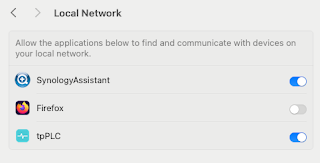
Note to self - Firefox and local connections

 Whilst trying to hit my NAS from Firefox on my Mac, I kept seeing errors such as:- Unable to connect Firefox can’t establish a connection t...